Use Digital Twins to Contextualize Data
Refer to the following how-to guide for leveraging Digital Twins for energy monitoring.
User Scenario
Digital Twins will model the asset as an energy monitoring machine located at several plant sites. The instances for the model will be the specific energy monitoring machines at each site.
The power generated will be used to generate values for cost, energy used, and energy rate. The timestamp value will be used to generate values for the attributes of season, start hour, and energy-rate description.
Values for power generated will be sent through the topic devicehub.alias.P2_Electrical_Panel.L3_Machine2.
Timestamp values from one of the energy monitoring machines will be sent through the topic flowToDT.EMD_L3_Machine2.
Sample Output Payload from Instance
This user scenario will be based on the following sample output payload from one instance.
{
  "time": "2023-04-13T17:00:00.000Z",
  "plant": "Toronto",
  "line": "Line 1",
  "asset": "Machine 2",
  "shift": 2,
  "energyUsed": 2.51,
  "energyRate": 15.1,
  "energyRateDescription": "On-Peak",
  "season": "Winter",
  "cost": 37.9,
  "timestamp": 1681408544466,
  "startHour": "2023-04-13T17:00:00.000Z"
}
Step 1: Create Digital Twins Model
You will first need to create the model that will store the instances of energy monitoring machines.
To create the model:
- Navigate to Digital Twins. The Models pane appears.
- From the Models pane, click the Create a model tile. The Create a Model dialog box appears.
- Click the Type drop-down list and select ASSET.
- Enter the name of the model in the Name field (for example, Energy_Monitoring_Model).
- (Optional) Enter a short description of the model in the Description field.
- Click Add. The new model appears in the Models pane.
After creating the model, you can configure it with the following parameters.
Model Static Attributes
The static attributes will need to be customized for each instance.
- Asset
- Line
- Model
- Manufacturer
- Location
- Plant
Transformations
The transformations are based on the sample payload above.
energyRateDescription
{
  "value": "$energyRateDescription",
  "timestamp": "$timestamp"
}
energyRate
{
  "value": "$energyRate",
  "timestamp": "$timestamp"
}
energyUsed
{
  "value": "$energyUsed",
  "timestamp": "$timestamp"
}
shift
{
  "value": "$shift",
  "timestamp": "$timestamp"
}
startHour
{
  "value": "$startHour",
  "timestamp": "$timestamp"
}
season
{
  "value": "$season",
  "timestamp": "$timestamp"
}
cost
{
  "value": "$cost",
  "timestamp": "$timestamp"
}
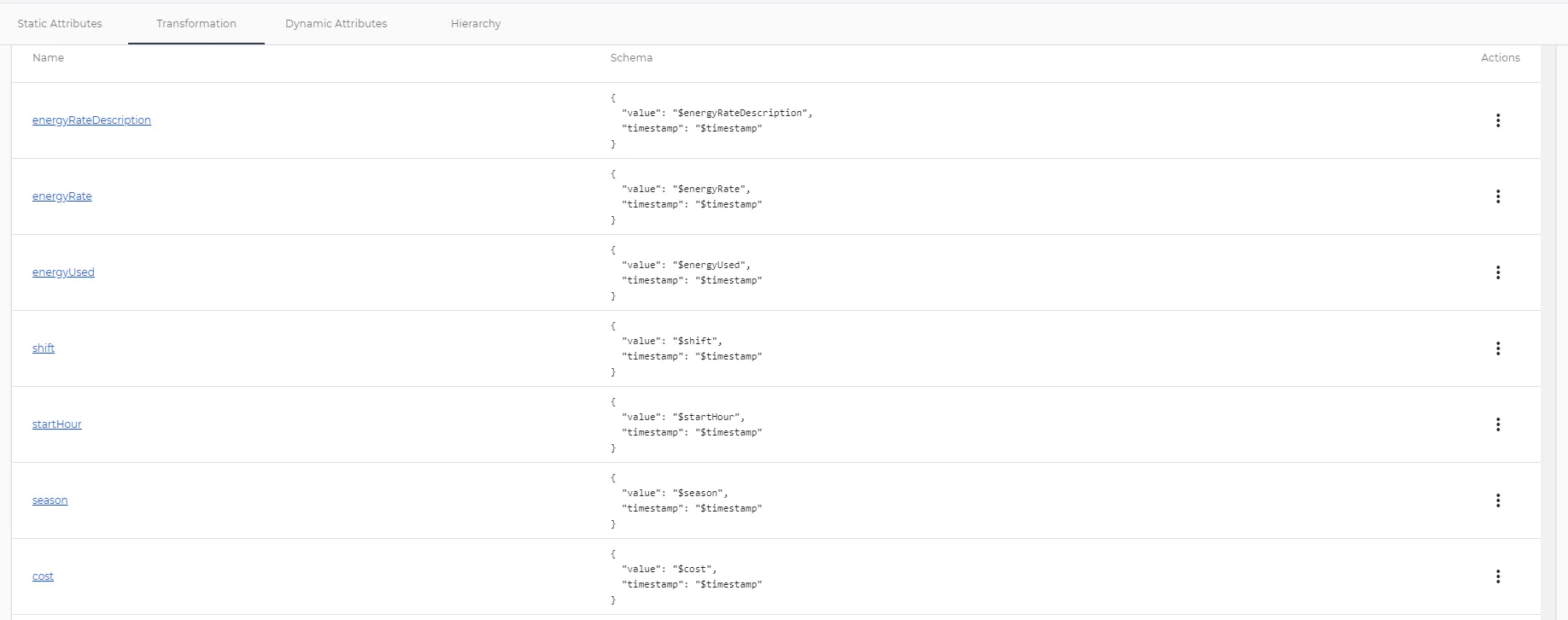
The list of transformations would display as the following.
Model Dynamic Attributes
The dynamic attributes will use the appropriate schemaID (transformation) to generate values.
Name | Unit (optional) | DataType (optional) | SchemaID (optional) |
|---|---|---|---|
cost | USD | | cost |
energyRateDescription | | | energyRateDescription |
energyRate | USD/kWh | | energyRate |
energyUsed | | | energyUsed |
shift | | | shift |
startHour | | | startHour |
season | | | season |
power | kW | | |
Hierarchy
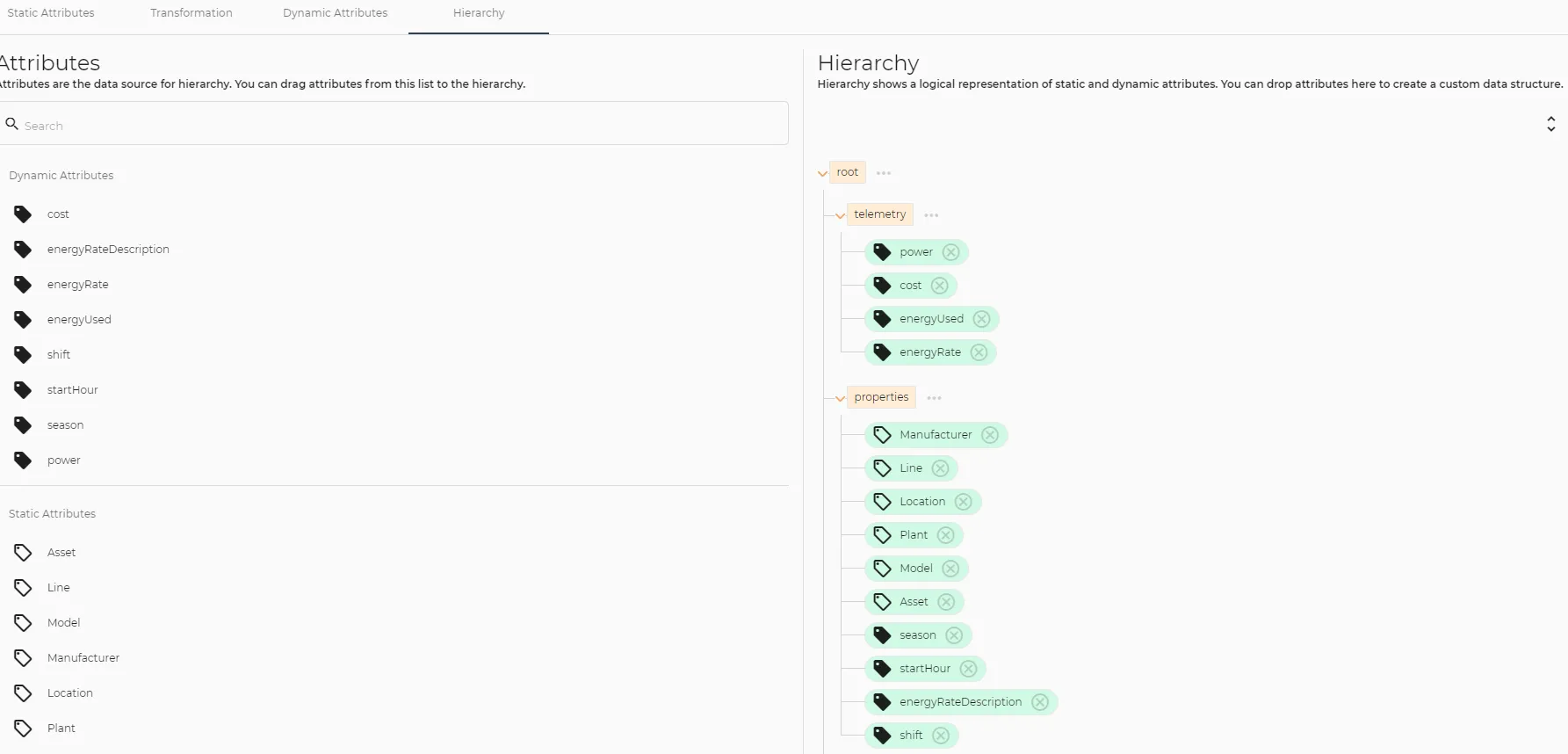
The output for the model will be based on the hierarchy, which would categorize the dynamic and static attributes into telemetry or properties. It would look like the following.
Step 2: Create Instances
Once the model is configured, you will need to Configure parameters for each energy monitoring device at each site.
One of the instances is described below based on the topics for the data in the user scenario description.
Instance Static Attributes
You will customize the model static attributes to the specific instance.
Attribute Name | Attribute Value |
|---|---|
Asset | Machine 2 |
Line | Line 1 |
Model | model_112233 |
Manufacturer | Siemens |
Location | Canada |
Plant | Toronto |
Instance Dynamic Attributes
You will configure the appropriate topics in the user scenario description to the dynamic attributes configured in the model.
Name | Unit | DataType | Topic | SchemaID (optional) |
|---|---|---|---|---|
power | kW | | devicehub.alias.P2_Electrical_Panel.L3_Machine2 | |
cost | USD | | flowToDT.EMD_L3_Machine2 | cost |
energyRateDescription | | | flowToDT.EMD_L3_Machine2 | energyRateDescription |
energyRate | USD/kWh | | flowToDT.EMD_L3_Machine2 | energyRate |
energyUsed | | | flowToDT.EMD_L3_Machine2 | energyUsed |
shift | | | flowToDT.EMD_L3_Machine2 | shift |
startHour | | | flowToDT.EMD_L3_Machine2 | startHour |
season | | | flowToDT.EMD_L3_Machine2 | season |