GCP Pub/Sub Integration
To configure the GCP Pub/Sub integration, complete the following steps.
Step 1: Add Device
Follow the steps to Connect a Device. The device will be used to store tags that will be eventually used to create outbound topics in the connector. Make sure to select the Enable Data Store checkbox.
Step 2: Add Tags
After connecting the device in Belden Horizon Data Operations (BHDO), you can Add a Tag to the device. Create tags that you want to use to create outbound topics for the connector.
Step 3: Add Google Cloud Pub/Sub Connector
To add the Kafka connector in BHDO:
- Navigate to Integration.
- Click Add a connector icon. The Add a connector dialog box appears.
- Select Google Cloud Pub/Sub provider from the drop-down list.
Complete the following information for the Google Cloud Pub/Sub connector as shown in the screenshot and click Update.
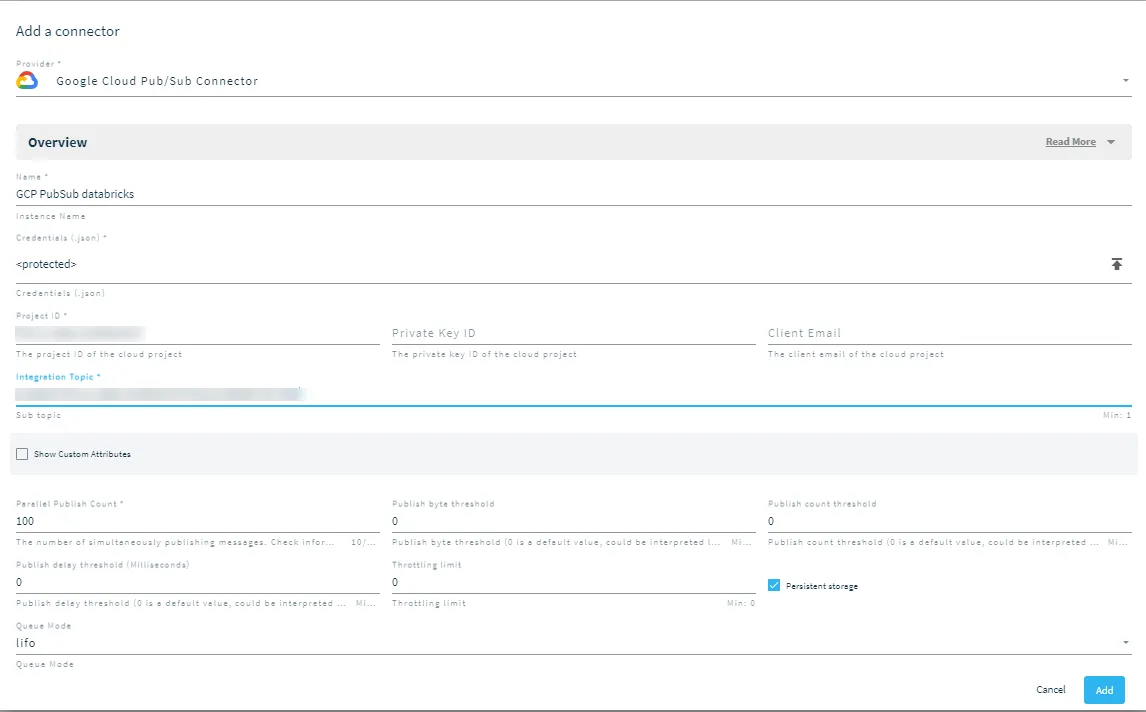 Edit a connector dialog box
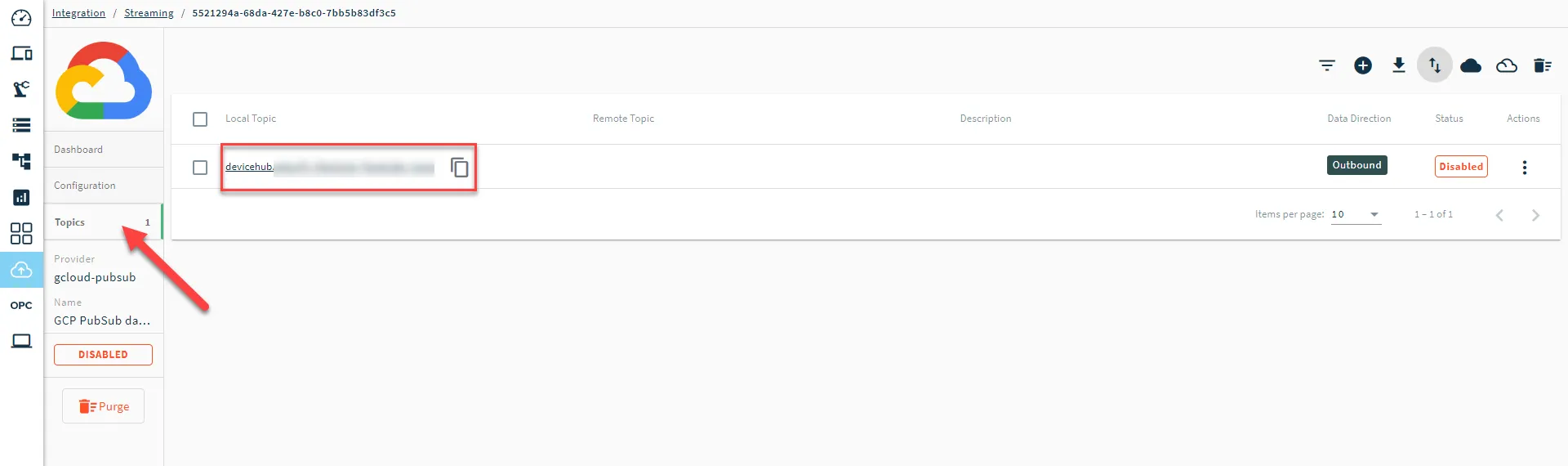
- Click the Google Cloud Pub/Sub connector tile. The connector Dashboard appears.
- Click the Topics tab.
- Click the Import from DeviceHub tags icon and select all the tags to send data to Databricks.
Step 4: Set Up Databricks for GCP Pub/Sub Streaming
In Databricks, you can configure GCP Pub/Sub connector parameters from a Python notebook file. You need to authenticate using service account credentials and specify Pub/Sub topic.
To set up Databricks for GCP Pub/Sub Streaming:
1. Navigate to Databricks workspace using your log in credentials.
2. Create a new notebook in Databricks. Follow the Databricks Pub/Sub Streaming Guide to set up Google Pub/Sub streaming.
3. Once the data is loaded, it will be in the following format:
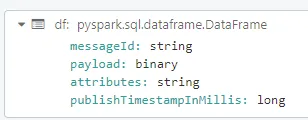
The payload sent by BHDO will be in the payload field in binary format.
Example Notebook for GCP Pub/Sub Streams
Note: The user can create their own notebooks and customize them as needed. This example notebook will explain how to ingest the standard DeviceHub JSON Payload.
Open a new notebook and follow the steps:
1. Import the necessary libraries and dependencies to handle Pub/Sub data streams and process data using PySpark.
import pyspark.sql.types as T
import pyspark.sql.functions as F
from pyspark.sql.types import StructType, StructField, StringType, IntegerType, DoubleType, BooleanType, TimestampType, LongType
from pyspark.sql.functions import from_unixtime
2. Define the credentials and GCP Pub/Sub information that will be used to authenticate and connect to the Pub/Sub service.
Note: End-users should use secure methods of passing their Pub/Sub credentials.
# for both topic and subscription topic, you only need to pass the topic and sub-topic name. Not the full path
# example = databricks-test
# not the full path in GCP PubSub, which is "projects/BHDO-sales-enablement/topics/databricks-test"

authOptions = {"<GCP_PUBSUB_SA_KEY>"}

pubsub_topic = "<GCP_PUBSUB_TOPIC>"
pubsub_subscription = "<GCP_PUBSUB_SUB_TOPIC>"
projectId = "<GCP_PROJECT_ID>"
3. Configure Spark to read data streams from the Pub/Sub topic.
Note: Ensure to include the subscription ID, topic ID, project ID, and authentication options.
df = (spark.readStream
  .format("pubsub")
  .option("subscriptionId", pubsub_subscription)
  .option("topicId", pubsub_topic)
  .option("projectId", projectId)
  .options(**authOptions)
  .load()
)
This will output the following:
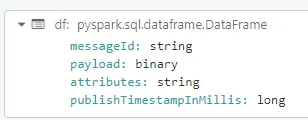
Note: This guide covers the DeviceHub JSON Payload. Please update the notebook if you are sending a different payload to Databricks.
4. Define the schema that matches the expected structure of the incoming data and parse the Pub/Sub stream data accordingly. This involves decoding the payload, extracting attributes, and structuring the parsed data into a DataFrame.
schema = StructType([
  StructField("deviceName", StringType(), True),
  StructField("tagName", StringType(), True),
  StructField("deviceID", StringType(), True),
  StructField("success", BooleanType(), True),
  StructField("datatype", StringType(), True),
  StructField("timestamp", LongType(), True),
  StructField("value", DoubleType(), True),
  StructField("metadata", StringType(), True),
  StructField("registerId", StringType(), True),
  StructField("description", StringType(), True)
])

table = "<DATABRICKS_TABLE_NAME>"

query = (df
  .withColumn("payload", F.decode(F.col("payload"), "UTF-8"))
  .withColumn("attributes", F.from_json(F.col("attributes"), T.MapType(T.StringType(), T.StringType())))
  .withColumn('parsed_value', F.from_json(F.col('payload').cast('string'), schema))
  .withColumn("LE_timestamp", from_unixtime(F.col('parsed_value.timestamp')/1000, "yyyy-MM-dd HH:mm:ss.SSS"))
  .select("messageId","attributes","publishTimestampInMillis",'parsed_value.*', "LE_timestamp")
  .writeStream
  .format("delta")
  .outputMode("append")
  .option("checkpointLocation", "/tmp/delta/"+ table + "/_checkpoints/").toTable(table)
)
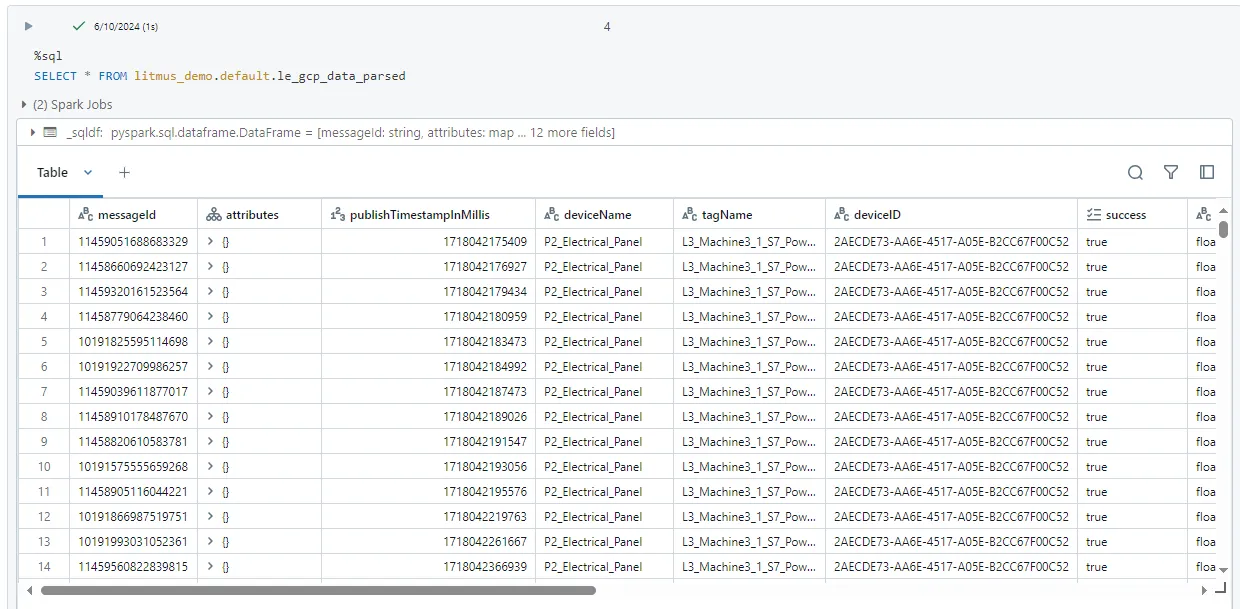
5. Once the data is published to the Databricks table, you can query the table to verify that the data ingestion process is successful.