Configure tables for SQL connectors
Belden Horizon Data Operations (BHDO) writes each message a SQL connector receives as a row in a database table. You control both the structure of that table and which value goes in each column.
This applies to the following connectors:
- DB - MySQL
Select one of two options. Create table uses a fixed table that BHDO defines. Show Mapping uses a table you define yourself, with columns you fill from the payload.
Use the default table
Select the Create table checkbox so that BHDO creates the destination table when it does not exist. If a table with that name already exists, BHDO writes to it. You need permission to create tables in the target database.
The default table stores one reading per row, with the device, tag, and value in separate columns. The schema depends on the database.
Microsoft SQL Server
IF NOT EXISTS(SELECT *
              FROM sysobjects
              WHERE NAME = '"TABLE_NAME"'
                AND xtype = 'U')
CREATE TABLE "TABLE_NAME"
(
    id          BIGINT IDENTITY(1,1) NOT NULL,
    record_uuid CHAR(36)       NOT NULL,
    arrived_at  DATETIME       NOT NULL,
    device_id   VARCHAR(64)    NULL,
    register_id VARCHAR(64)    NULL,
    tag_name    VARCHAR(64)    NULL,
    datatype    VARCHAR(32)    NULL,
    value       TEXT           NULL,
    success     BIT            NULL,
    PRIMARY KEY (id)
)
MySQL
CREATE TABLE IF NOT EXISTS `TABLE_NAME`
(
    id          BIGINT AUTO_INCREMENT NOT NULL,
    record_uuid CHAR(36)              NOT NULL,
    arrived_at  DATETIME              NOT NULL,
    device_id   VARCHAR(64)           NULL,
    register_id VARCHAR(64)           NULL,
    tag_name    VARCHAR(64)           NULL,
    datatype    VARCHAR(32)           NULL,
    value       TEXT                  NULL,
    success     TINYINT               NULL,
    PRIMARY KEY (id)
);
PostgreSQL
CREATE TABLE IF NOT EXISTS "TABLE_NAME"
(
    id BIGSERIAL NOT NULL,
    record_uuid UUID NOT NULL,
    arrived_at  TIMESTAMP WITH TIME ZONE NOT NULL,
    device_id   VARCHAR(64)    NULL,
    register_id VARCHAR(64)    NULL,
    tag_name    VARCHAR(64)    NULL,
    datatype    VARCHAR(32)    NULL,
    value       VARCHAR NULL,
    success     BOOLEAN        NULL,
    PRIMARY KEY (id)
);
Use a custom table
Select the Show Mapping checkbox to send data to a table you create yourself, with whatever structure you need. You then pair each column in that table with the value that fills it.
Mapping does not create or alter tables, so create the table before you configure the connector. Mapping also places no restriction on data types. Any column type works as long as it can store the values you send to it.
How BHDO reads a mapping value
Each mapping entry has a key and a value. The key is a column in your table. The value tells BHDO what to put in that column:
- A payload field name, such as deviceId, writes the value of that field.
- A column name from the default schema, such as device_id, writes the value BHDO would have written to that column.
- Text prefixed with @, such as @plant-a, writes that text into every row as a static value.
- An empty value uses the default schema.
Map nested fields with JSONPath
Mapping values match first-level fields in the payload. If your data arrives as nested JSON, select Enable JSONPath so that BHDO reads any value beginning with $ as a JSONPath expression instead of a field name. Dotted paths, quoted keys, and array indexes all work.
Values that do not begin with $ keep their usual meanings, so a single mapping can combine expressions, field names, and static text. An expression that matches nothing writes NULL.
Note: Enable JSONPath is available on Gen 2 PostgreSQL, MySQL, and Microsoft SQL Server connectors. The checkbox is clear by default, and while it is clear, mapping values match first-level fields.
Before you begin
Before you map a custom table, make sure you have:
- A table created in the target database
- Column types that can store the values you intend to send
- Enough SQL knowledge to match payload fields to your schema
An error in the mapping stops data reaching the database.
Map columns to payload fields
Complete steps 1 to 3 of one of the following guides, then return here to configure the connector in step 4:
These guides use DeviceHub devices and tags to produce the data. You can also produce it with Analytics or Flows Manager.
To map columns to payload fields:
- In the Add a connector or Edit connector dialog box, enter the name of your table in the Table field.
- Select the Show Mapping checkbox. Confirm that the Create table checkbox is clear. The Key/Value section appears.
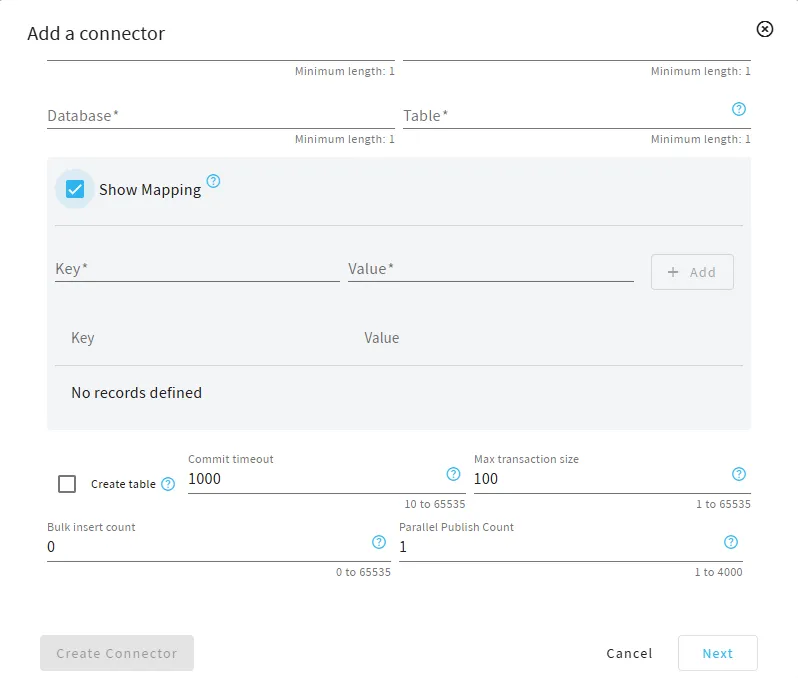
- In the Key field, enter the name of a column in your table.
- In the Value field, enter the payload field that supplies the value.
- Click +Add. The pair is added to the mapping.
- Repeat steps 3 to 5 for each remaining column.
Mapping example
Your connector receives the following messages.
{"deviceName": "PLC1", "timestamp": 1239423823, "value": 123}
{"deviceName": "PLC1", "timestamp": 1247382948, "value": 545}
{"deviceName": "PLC1", "timestamp": 1294859324, "value": 787}
Your table has three columns.
Device Name | Timestamp | Data Value |
|---|---|---|
| | |
You map each column to the field that fills it.
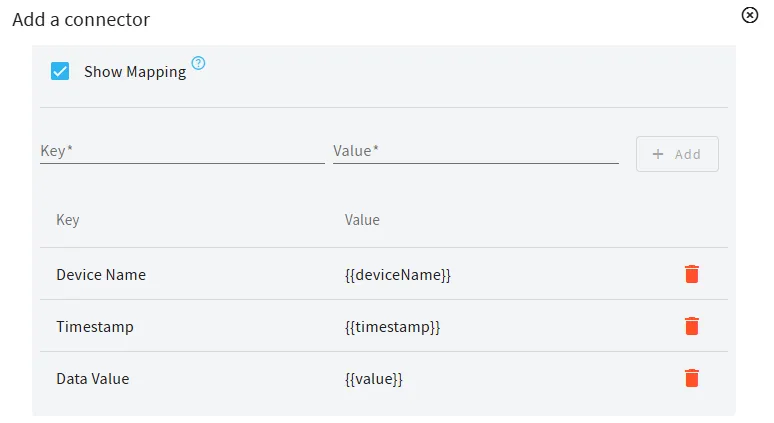
The connector then writes the following rows.
Device Name | Timestamp | Data Value |
|---|---|---|
PLC1 | 1239423823 | 123 |
PLC1 | 1247382948 | 545 |
PLC1 | 1294859324 | 787 |
Map columns to nested payload fields
Use this procedure when the values you want are nested below the first level of the payload, for example inside a machine or sensors object.
To map columns to nested payload fields:
- In the Add a connector or Edit connector dialog box, enter the name of your table in the Table field.
- Select the Show Mapping checkbox. Confirm that the Create table checkbox is clear.
- Select the Enable JSONPath checkbox.
- In the Key field, enter the name of a column in your table.
- In the Value field, enter a JSONPath expression that points to the field you want, starting with $.
- Click +Add. The pair is added to the mapping.
- Repeat steps 4 to 6 for each remaining column.
JSONPath example
Your connector receives the following payload.
{
  "factory": {
    "name": "Plant A",
    "location": "Detroit",
    "line": {
      "id": "L1",
      "product": "Engine Block",
      "shift": "morning",
      "machine": {
        "id": "M101",
        "type": "CNC Mill",
        "status": "running",
        "operator": "John",
        "sensors": {
          "temperature": 72.4,
          "vibration": 0.3,
          "rpm": 3200
        }
      }
    }
  }
}
With Enable JSONPath selected, you map each column to an expression.
Key | Value |
|---|---|
product | $.factory.line.product |
status | $.factory.line.machine.status |
sensor_temperature | $.factory.line.machine.sensors.temperature |
The connector then writes the following row.
product | status | sensor_temperature |
|---|---|---|
Engine Block | running | 72.4 |
Change a mapping or a table
The connector works from the schema it reads when it starts.
Caution: Disable and enable the connector after you change a data type or the destination table in the database. If you do not restart it, the data transfer can fail.