PostgreSQL Integration Guide
Review the following guide for setting up an integration between Belden Horizon Data Operations (BHDO) and a PostgreSQL database.
User Scenario
In this guide you will deploy a PostgreSQL database container from BHDO and then integrate with the database using the DB-PostgreSQL Server connector. For your specific scenario you may use an external PostgreSQL Server database to set up the integration.
For external PostgreSQL databases, refer to the following links to learn more:
Step 1: Add Device
Follow the steps to Connect a Device. The device will be used to store tags that will be eventually used to create outbound topics in the connector. Make sure to select the Enable Data Store check box.
Step 2: Add Tags
After connecting the device in Belden Horizon Data Operations, you can Add Tags to the device. Create tags that you want to use to create outbound topics for the connector.
Step 3: Run PostgreSQL Container
Note: The version used in this use case for PostgreSQL is 9.6.5.
To run the PostgreSQL Container:
- In Belden Horizon Data Operations, navigate to Applications > Containers.
- Click Run. The command line appears.
- Enter the following. docker run -p 54325432 --name postgresql -e POSTGRES_PASSWORD=<> -e POSTGRES_USER-postgres -e POSTGRES_DB=db-example -v pgdata:/var/lib/postgresql/data -d 5432:5432 postgres,
- Click Run. The PostgreSQL container appears and is running.
- Copy the IP address for the PostgreSQL container.
Step 4: Add the DB - PostgreSQL Connector
Follow the steps to Add a Connector and select the DB - PostgreSQL provider.
Configure the following parameters.
- Name: Enter a name for the connector.
- Hostname: Paste the IP address you copied in Step 3.
- Port: The PostgreSQL Server port. The default value is 5432.
- Username: Paste the username configured in Step 3.
- Password: Paste the password configured in Step 3.
- Database: Paste the database name configured configured in Step 3.
- Table: Enter devicehub. If you are sending data to an existing table, use the corresponding name.
- Show Mapping: If you want to send data to a custom table, select this check box and unselect Create table. See Work with Tables in SQL Connectors (Create Table and Show Mapping) to learn more. To add key/value pairs for the custom table, see Configure Key/Value Pairs.
- Create table: If you want to send data to an existing table in the default format, or you want to create a new table in the default format, select this check box and unselect Show Mapping. See Work with Tables in SQL Connectors (Create Table and Show Mapping) to learn more.
- Commit timeout: Transaction commit timeout (ms).
- Max transaction size: Maximum number of messages before a transaction is committed regardless of timeout.
- Bulk insert count: To enable this option, enter the number of messages to group together and send as one bulk insert statement. Enabling this option can improve how quickly data is processed when dealing with high volumes of tags. Available for Belden Horizon Data Operations 3.11.1 and later.
- Throttling limit: The maximum number of messages per second to be processed. The default value is zero, which means that there is no limit.
- Persistent storage: When enabled, this will cause messages to undergo a store-and-forward procedure. Messages will be stored within Belden Horizon Data Operations when cloud providers are online.
- Queue Mode: Select the queue mode as lifo (last in first out) or fifo (first in first out). Selecting lifo means that the last data entry is processed first, and selecting fifo means the first data entry is processed first.
Step 5: Enable the Connector
After adding the connector, click the toggle in the connector tile to enable it.
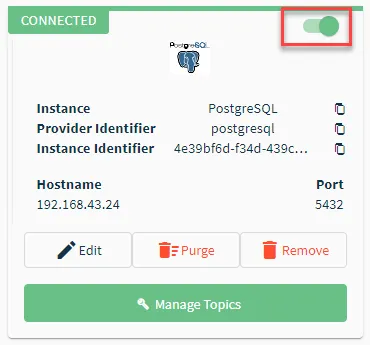
If you see a Failed status, review the Connector Logs and any relevant error messages.
Step 6: Create Topics for Connector
You will now need to import the tags created in Step 2 as topics for the PostgreSQL connector. The topics will be created as outbound topics.
To create outbound topics:
- Click the connector tile. The connector Dashboard appears.
- Click the Topics tab.
Click the Import from DeviceHub tags icon. The DeviceHub Import dialog box appears.
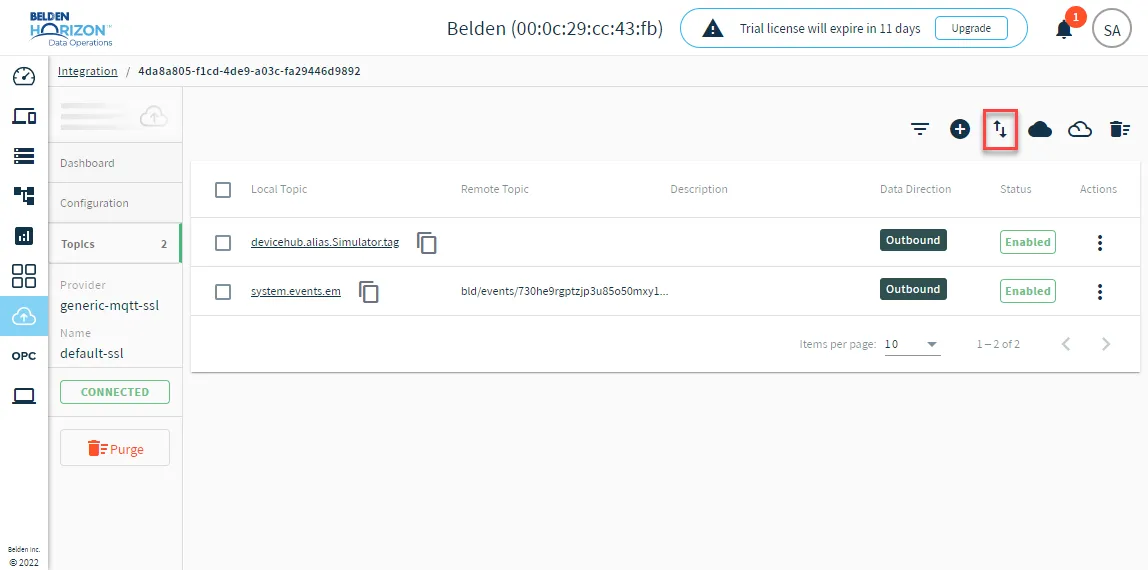
After adding all required topics, navigate to the Integration overview page and ensure the connector is not disabled and still shows a CONNECTED status.
Step 7: Enable Topics
To enable the topics, return to the Topics tab and click the Enable all topics icon.
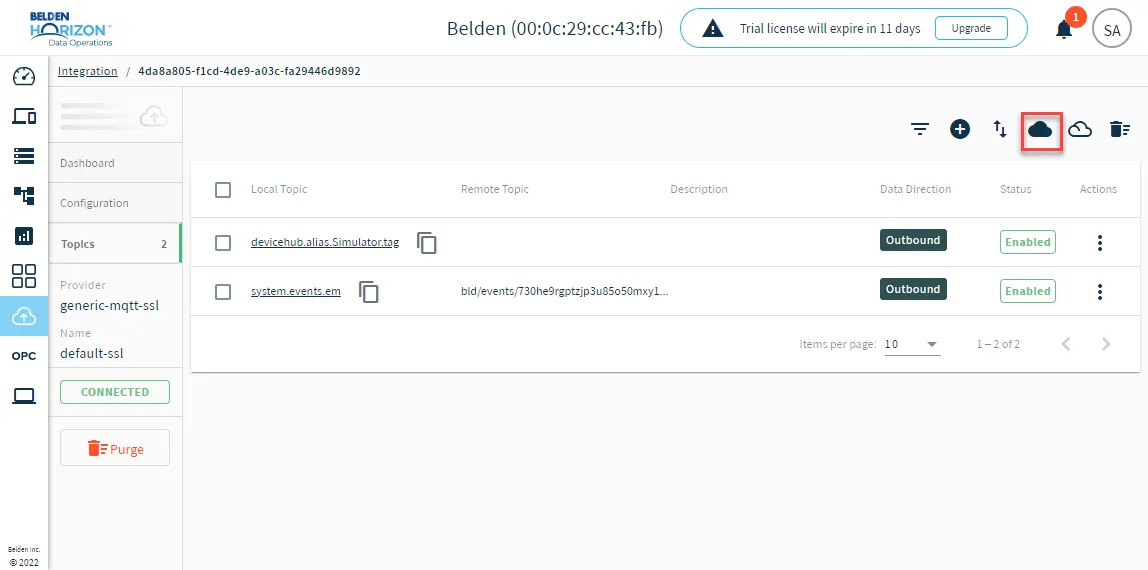
Step 8: Make PostgreSQL Queries
You can now verify that you can view data through the terminal command window.
Update the credentials, database name, and table name to your specific configurations.
To make queries in the container terminal:
- In Belden Horizon Data Operations, navigate to Applications > Containers.
- Click the Terminal icon next to the PostgreSQL container. The PostgreSQL shell opens.
- From the PostgreSQL container terminal, enter psql -h locahost -U postgres and press ENTER. The psql (13.2 (Debian 13.2-1.pgdg100+1)) version number appears.
- Enter \l and press ENTER. The list of databases appears in the console.
- Enter \c postgres and press ENTER. You are now connected to database "postgres" as user "postgres" appears.
- Enter \dt and press ENTER. The list of relations appears showing the devicehub schema.
- Enter \d devicehub and press ENTER. The public.devicehub table appears.
Enter select * from devicehub; and press ENTER. The data for the table appears.
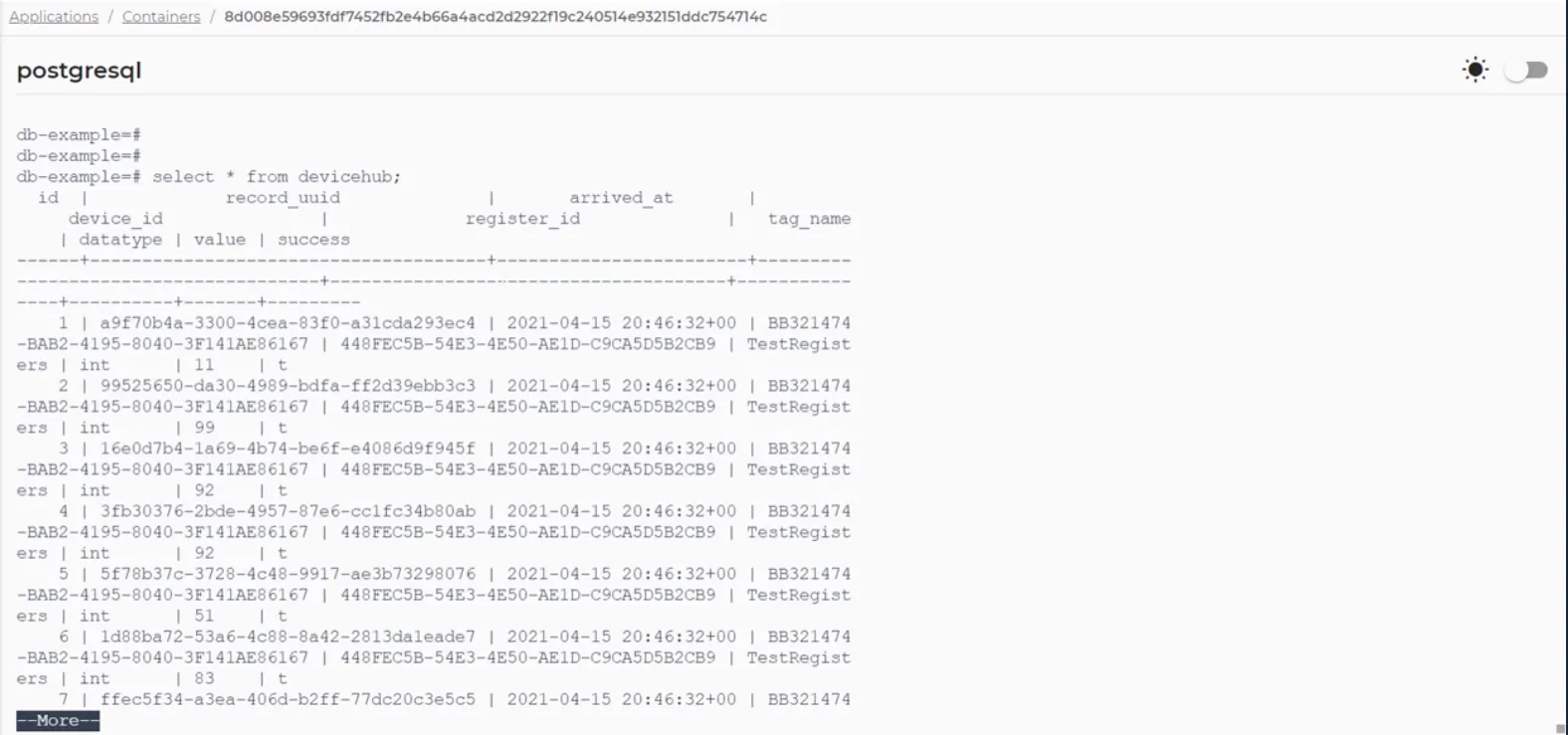 PostgreSQL connector messages