Browse Tags
2 min
The Browse Tags functionality allows you to search, select, and download selected tags available for a device.
Devices that support searching for device tags display a tag icon in the top-right corner of the device card.
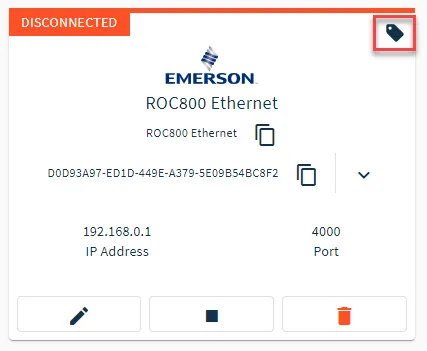
Browse tag option shown for a device
Notes:
- Make sure the device you are searching has a status of CONNECTED in DeviceHub. The pre-defined device tags in the Roc800 Ethernet driver are hard-coded in the device, so it doesn't need to be connected to browse tags.
- When browsing for tags with the BacnetIP driver, only tags with the property of Present_Value will be identified.
To browse tags:
From the Tags pane, click the Add icon, and then select Browse Tags. The Browse Tags dialog box appears.
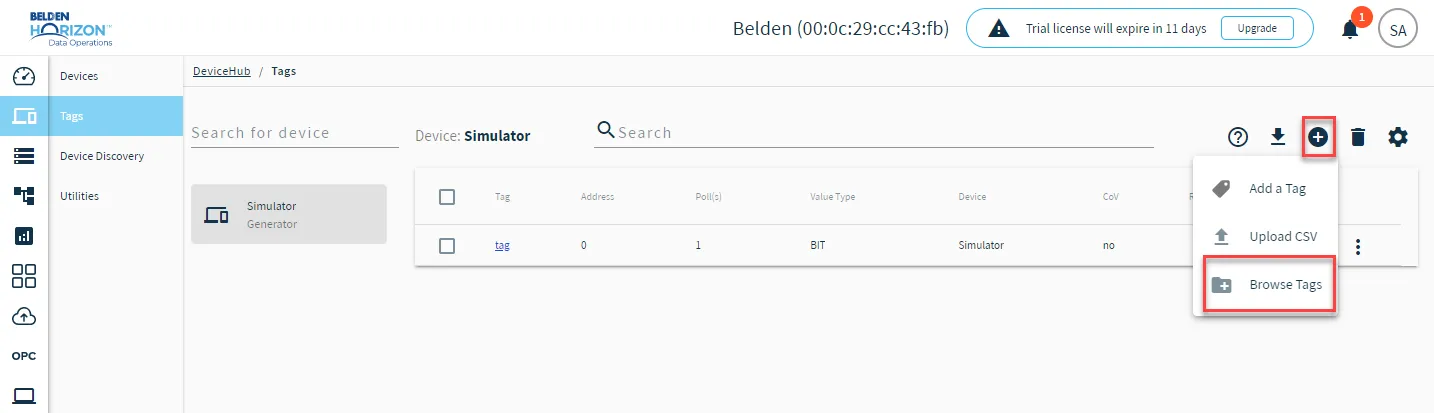 Browse tags option
- Select a device from the Select Device drop-down list.The Tags List drops down in the Browse Tags dialog box.
- Select tags to add to the DeviceHub device and click Add.
Refer to the following tasks you can complete from the Browse Tags dialog box.
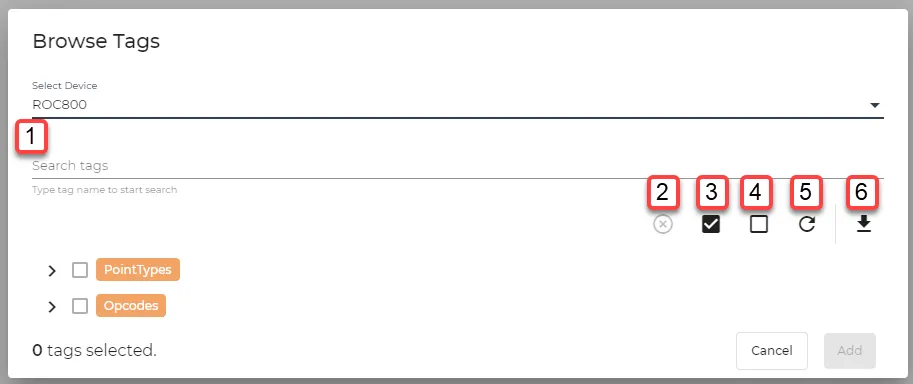
Browse Tags dialog box
[1] Search tags
[2] Cancel pending requests
[3] Select all
[4] Clear selection
[5] Reload device tags
[6] Download tags as CSV