Manage Firewall Rules
Note: This feature is available for Belden Horizon Data Operations version 3.7.0 and later.
You can manage firewall rules to open specific ports or port ranges for inbound communication by navigating to System > Network and clicking the Firewall tab.
Note: These firewall rules apply only to IPv4 traffic.
The Firewall pane allows you to do the following:
- Review what ports are being used by Belden Horizon Data Operations system components, applications, and containers.
- Ensure that any DeviceHub drivers and Docker container applications are not running on conflicting ports.
- Open ports and port ranges with appropriate protocol (TCP/UDP) for Docker applications, containers, and DeviceHub drivers.
- Manage and close ports as needed.
You can review any firewall changes in System > Events.
The pane shows a summary of what ports are currently open.
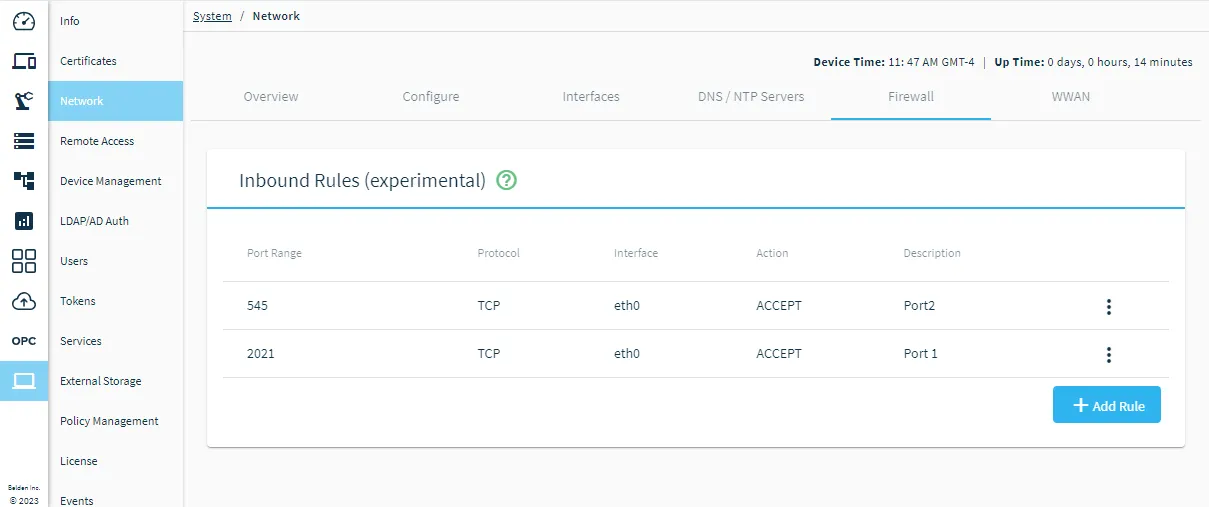
List of Reserved Ports
There are some ports that cannot be used for firewall rules because they are reserved for system services.
Review the list of reserved ports.
Reserved Port or Port Range | System Service that Uses Port(s) |
|---|---|
21 | FTP |
22 | SSH |
80 | HTTP |
123 | NTP |
389 | LDAP |
443 | Belden Horizon Data Manager API |
636 | LDAP with SSL |
1880 | Belden Horizon Data Operations UI REST endpoint |
2121 | FTP |
4840 | OPC UA |
5353 | mDNS |
5355 | LLMNR |
8081-8199 | REST API endpoints |
9081-9199 | gRPC API endpoints |
8883 | MQTT to Belden Horizon Data Manager |
51280 | Belden Horizon Data Manager Remote Access |
Add Firewall Rule
To add a firewall rule:
- From the Network > Firewall pane, click Add Rule. The Add Inbound Rule dialog displays.
In the Port or Port Range field, enter a single port number or a range of port numbers separated by a hyphen (-).
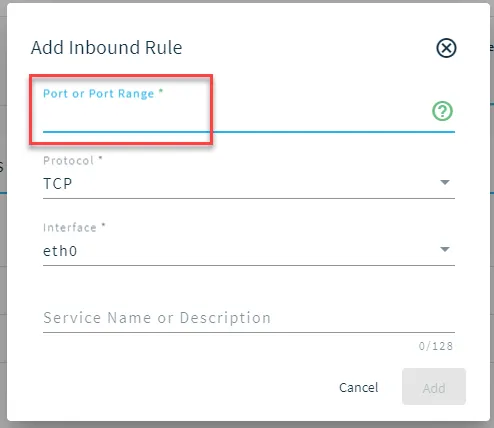 Port/Port range field
In the Protocol field, select either TCP (transmission control protocol) or UDP (user datagram protocol).
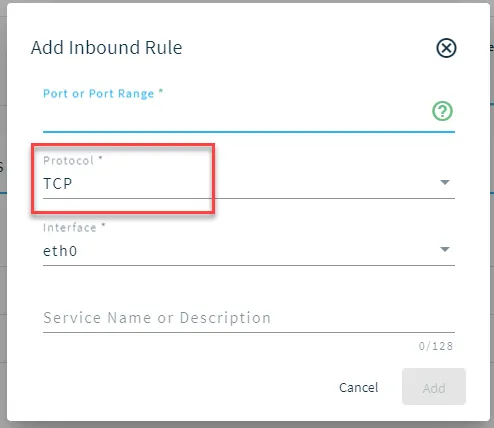
- Click Add. The new rule displays on the pane.
Manage Port Rules
To manage port rules, click the Action menu for a rule.
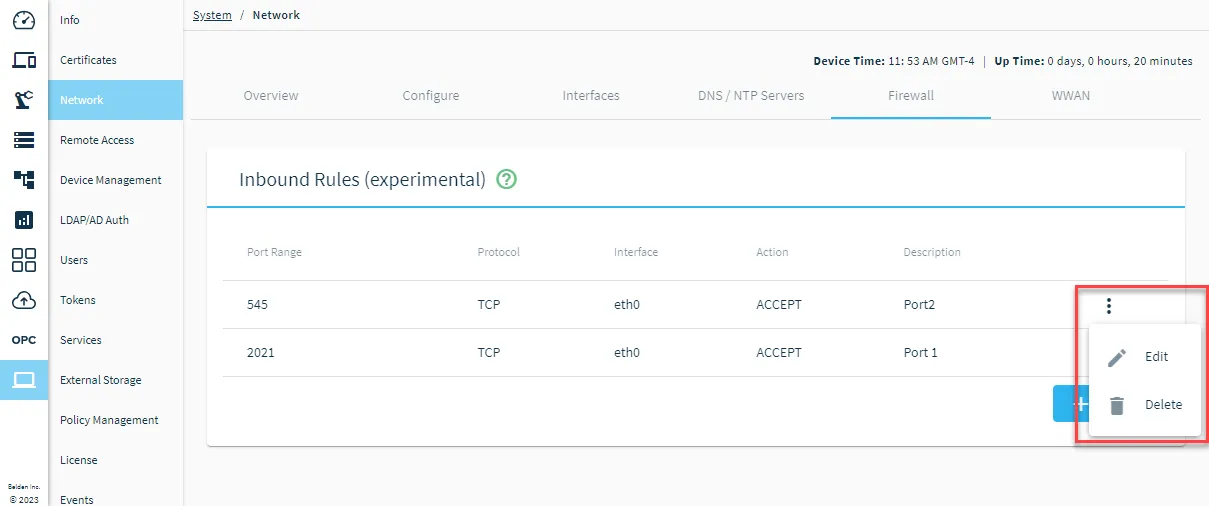
- Edit: Update the rule.
- Delete: Remove the rule and close the port or port range.