InfluxDB v2.x SSL Integration Guide
Review the following guide for setting up an integration between Belden Horizon Data Operations and an InfluxDB database (version 2.x) using SSL authentication.
User Scenario
In this guide you will deploy InfluxDB from the same computer (Windows-based) running BHDO and then use the DB - InfluxDB v2.x SSL connector to connect locally BHDO and the database.
Before You Begin
You will need to set up your computer so that it can run Docker commands.
Step 1: Set up InfluxDB
You will first need to run the InfluxDB Docker image and then configure SSL authentication.
Step 1a: Run InfluxDB Docker Image
- On your computer, open the command prompt window.
- Run the following command. docker run --name influxdb -p 8086:8086 influxdb:2.0.9 The command will create the InfluxDB container with the name "influxdb", on port 8086, and install InfluxDB version 2.0.9. If you are using a different version of InfluxDB, update the version number.
Once the pulling and running of InfluxDB is complete, open a browser window and enter http://localhost:8086 in the address window. The setup screen for InfluxDB displays.
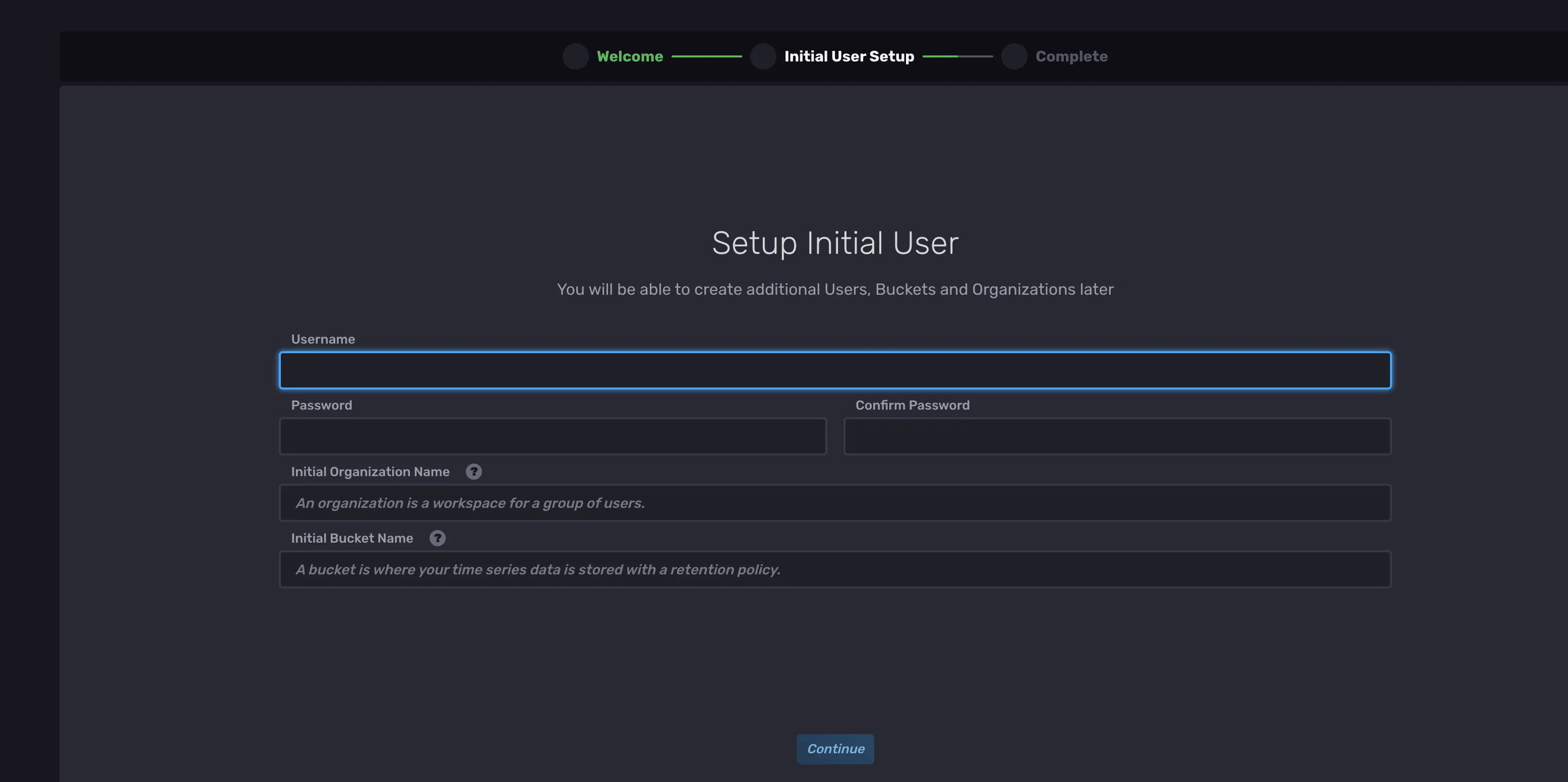 InfluxDB initial setup screen
- Configure the details for the initial user. You will need to refer to these values when setting up the connector in BHDO.
- Username
- Password
- Initial Organization Name
- Initial Bucket Name
- Click Continue.
- Continue setting up the database as needed.
- Return to the homepage of InfluxDB.
Navigate to Data > Tokens. Then, click the token name already created. Details for the token display
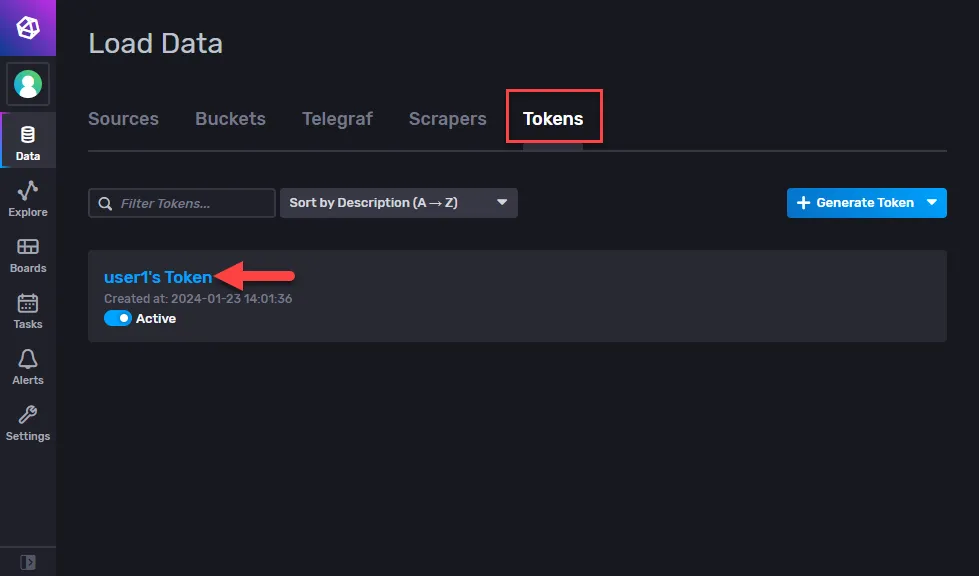 The Tokens page
Click Copy to Clipboard and store the token somewhere securely. You will refer to this when setting up the connector in BHDO.
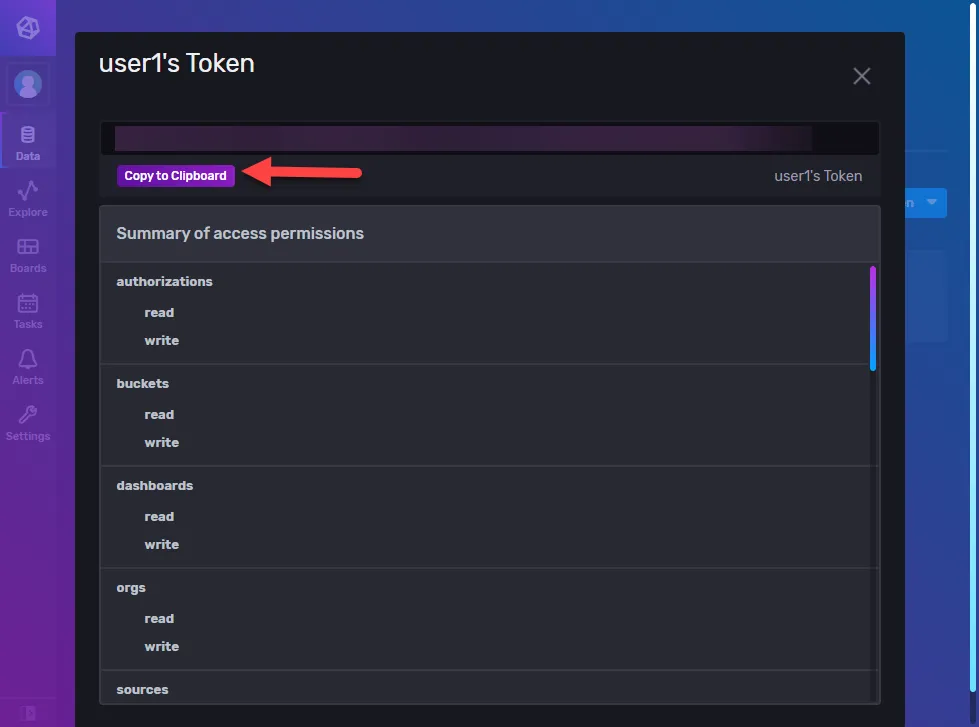 Token details
Step 1b: Configure SSL authentication
You will need to configure SSL authentication in InfluxDB and use the authentication parameters to configure the connection in BHDO. See Enable TLS encryption to learn more.
Now that InfluxDB is configured to your specific requirements and you've collected the parameters needed to set up the connection, you can complete the setup in BHDO.
Step 2: Add Device
Follow the steps to Connect a Device. The device will be used to store tags that will be eventually used to create outbound topics in the connector. Make sure to select the Enable Data Store check box.
Step 3: Add Tags
After connecting the device in Belden Horizon Data Operations, you can Add Tags to the device. Create tags that you want to use to create outbound topics for the connector.
Step 4: Add the InfluxDB SSL Connector
Follow the steps to Add a Connector and select the DB - InfluxDB v2.x SSL provider.
Configure the following parameters.
- Name: Enter a name for the connector.
- InfluxDB address: Enter http://localhost:8086.
- InfluxDB bucket name: Enter the bucket name configured in the InfluxDB setup in Step 1.
- Organization: Enter the organization name configured in the InfluxDB setup in Step 1.
- Auth token: Paste the token copied in Step 1.
- Username: Enter the username configured in the InfluxDB setup in Step 1.
- Password: Enter the password configured in the InfluxDB setup in Step 1.
- CA Certificate: Paste CA certificate required to access InfluxDB. For BHDO version 3.10.0 and later, you have the option to upload the certificate.
- Certificate: Paste the SSL certificate. For BHDO version 3.10.0 and later, you have the option to upload the certificate.
- Private key: Enter or paste the SSL private key.
- Insert batch size: Enter the number of messages to be collected as a batch before inserting into the database
- Insert batch commit time: Enter the time, in seconds, before the next commit, regardless of batch size.
- Throttling limit: The maximum number of messages per second to be processed. The default value is zero, which means that there is no limit.
- Persistent storage: When enabled, this will cause messages to undergo a store-and-forward procedure. Messages will be stored within BHDO when cloud providers are online.
- Queue Mode: Select the queue mode as lifo (last in first out) or fifo (first in first out). Selecting lifo means that the last data entry is processed first, and selecting fifo means the first data entry is processed first.
Step 5: Enable the Connector
After adding the connector, click the toggle in the connector tile to enable it.
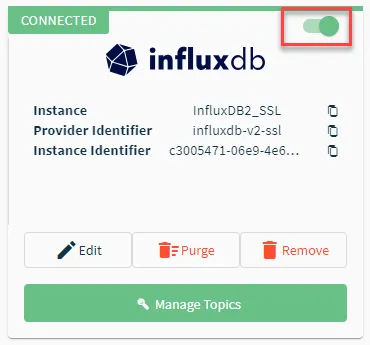
If you see a Failed status, review the Connector Logs and any relevant error messages.
Step 6: Create Topics for Connector
You will now need to import the tags you added in Step 3 to the connector as topics.
To create outbound topics:
- Click the connector tile. The connector Dashboard appears.
- Click the Topics tab.
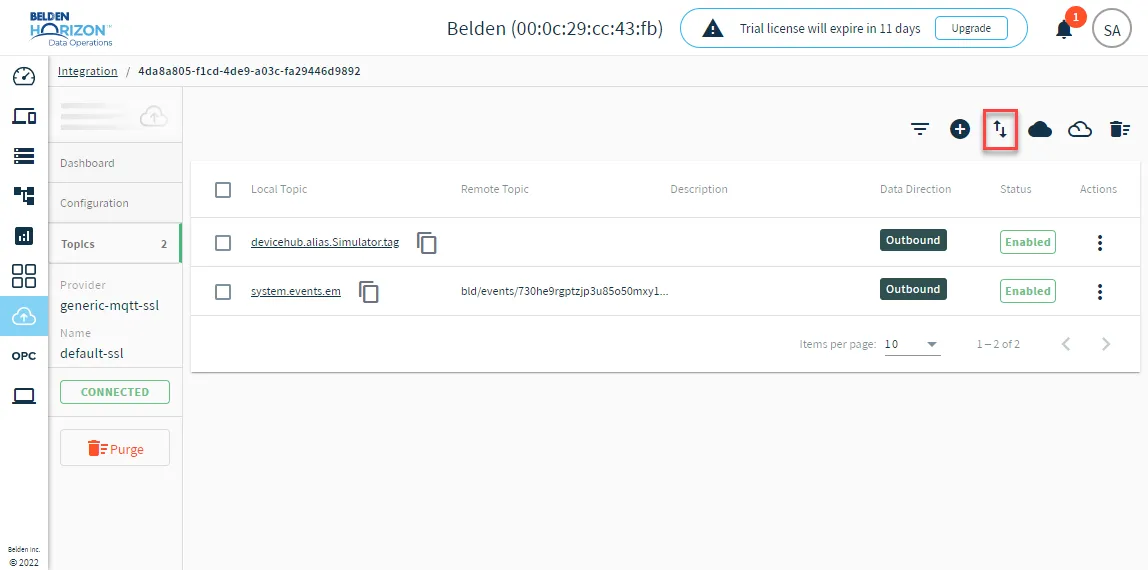
Click the Import from DeviceHub tags icon. The DeviceHub Import dialog box appears.
After adding all required topics, navigate to the Integration overview page and ensure the connector is not disabled and still shows a CONNECTED status.
Step 7: Enable Topics
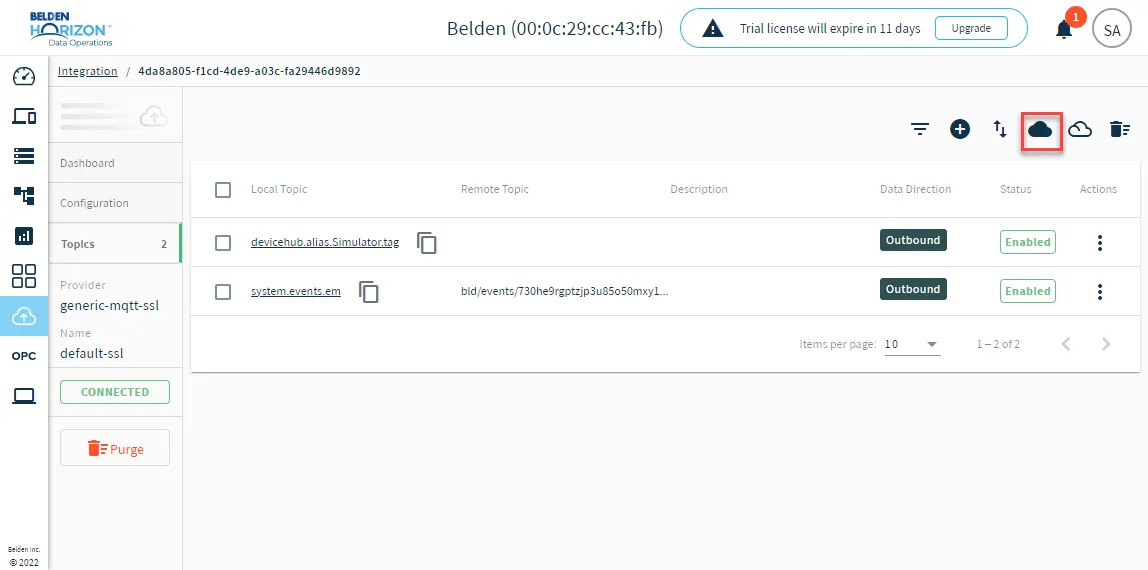
To enable the topics, return to the Topics tab and click the Enable all topics icon.
Step 8: Verify Connection
Return to the InfluxDB browser window and explore the metrics to ensure that data is being successfully sent from Belden Horizon Data Operations to to InfluxDB.