Create and Import Models
Note: The Digital Twins feature is available for Belden Horizon Data Operations version 3.5.2 and later.
You can create Digital Twins models by navigating to Digital Twins > Models.
See Use Digital Twins to Contextualize Data to review how to leverage Digital Twins.
Step 1: Create Model
You have two options for creating the model. You can create a new model or import a model as a JSON file.
Create a New Model
To create a new model:
- Navigate to Digital Twins. The Models pane appears.
From the Models pane, click the Create a model tile.
The Create a Model dialog box appears
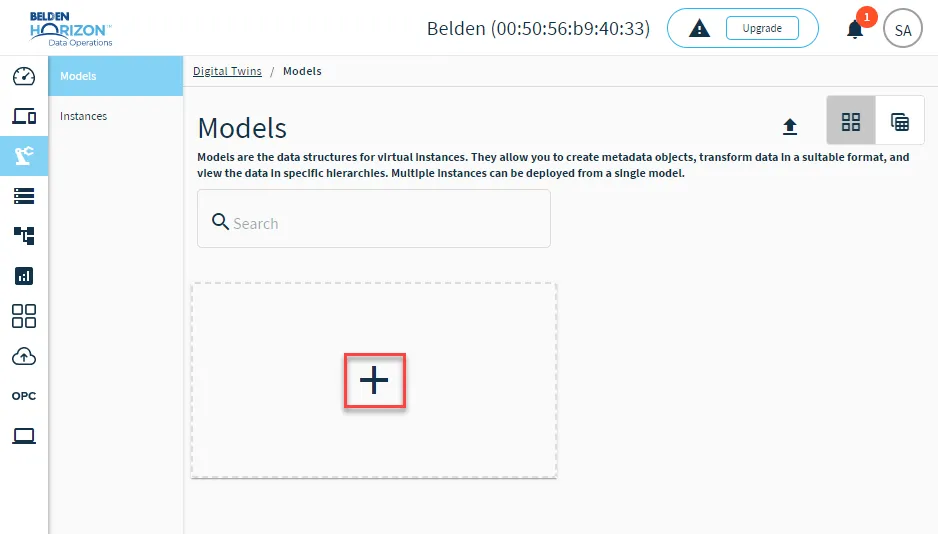 The Create a Model tile
- Click the Type drop-down list and select Select model type.
- Enter the name of the model in the Name field.
- (Optional) Enter a short description of the model in the Description field.
- Click Add. A new model tile appears in the Models pane.
Import an Existing Model
You can import a model as a JSON file.
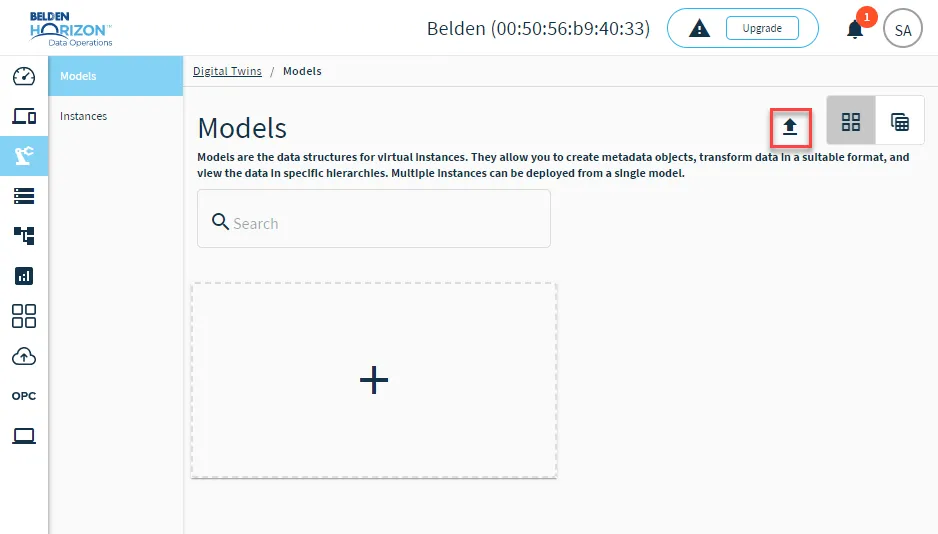
To import an existing model, click the Import Model icon, select the <model name>.json file, and click Open.
Model Versions
Note: This feature is available for Belden Horizon Data Operations version 3.10.0 and later.
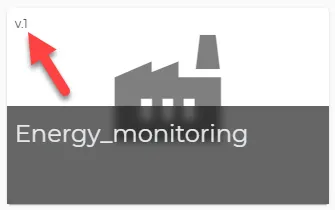
After creating the model, it is tagged as version 1, and any changes to the model update the model version.
Implement Model Updates to Instances
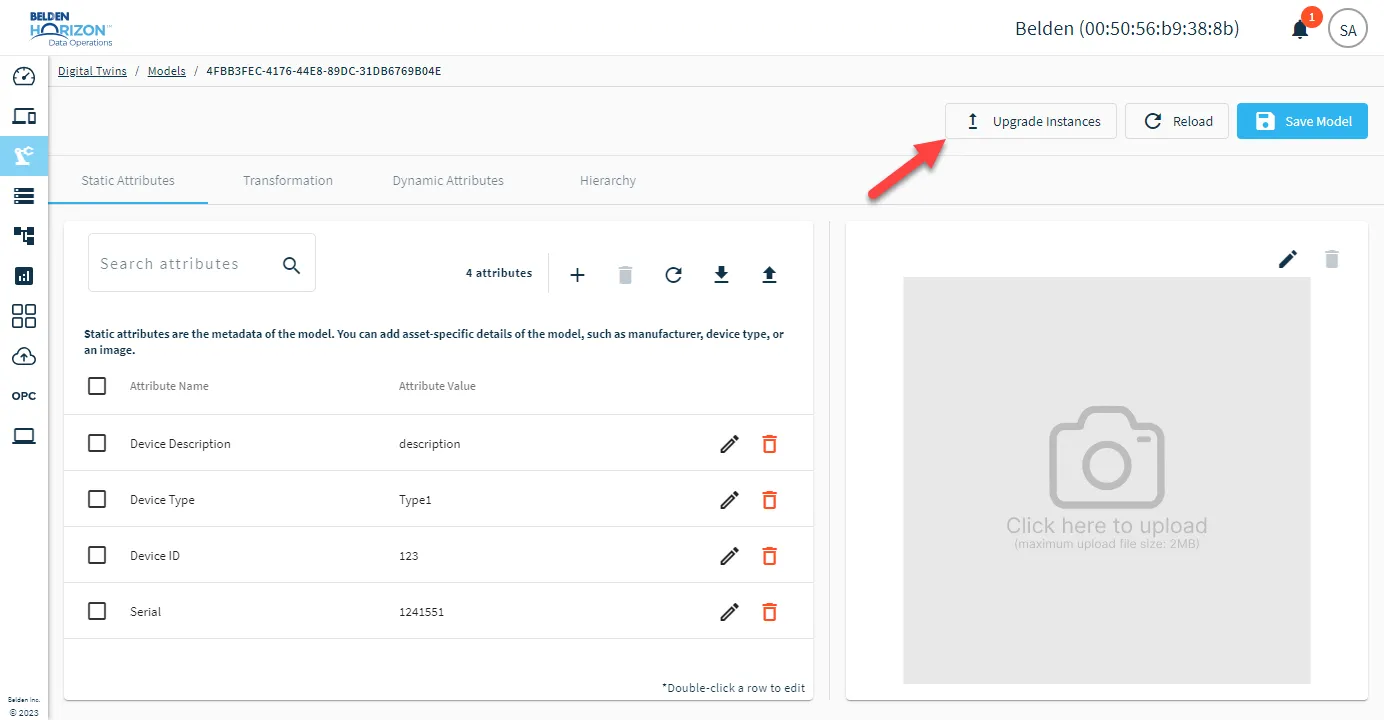
If there are changes to the model that need to be implemented in associated instances, click Upgrade Instances.
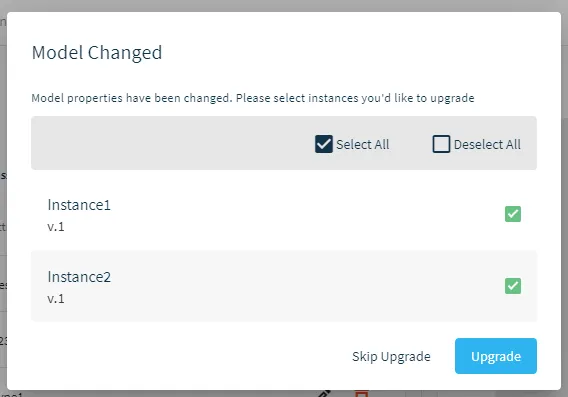
Then, select the instances to upgrade and click Upgrade.
Step 2: Configure Model
After creating the model, you can configure it appropriately for instances.
Important: For Belden Horizon Data Operations version 3.5.5 and earlier, no changes are allowed to a model after creating an instance for the model. For Belden Horizon Data Operations version 3.10.0 and later, you have the option to update models with instances and select which instances to update as well. If an instance is updated based on changes made to the model, then it will be automatically disabled. You will need to manually enable the instance after updating it.
Click the Model tile (grid view) or Model name (table view) to view the model details.
Model Image
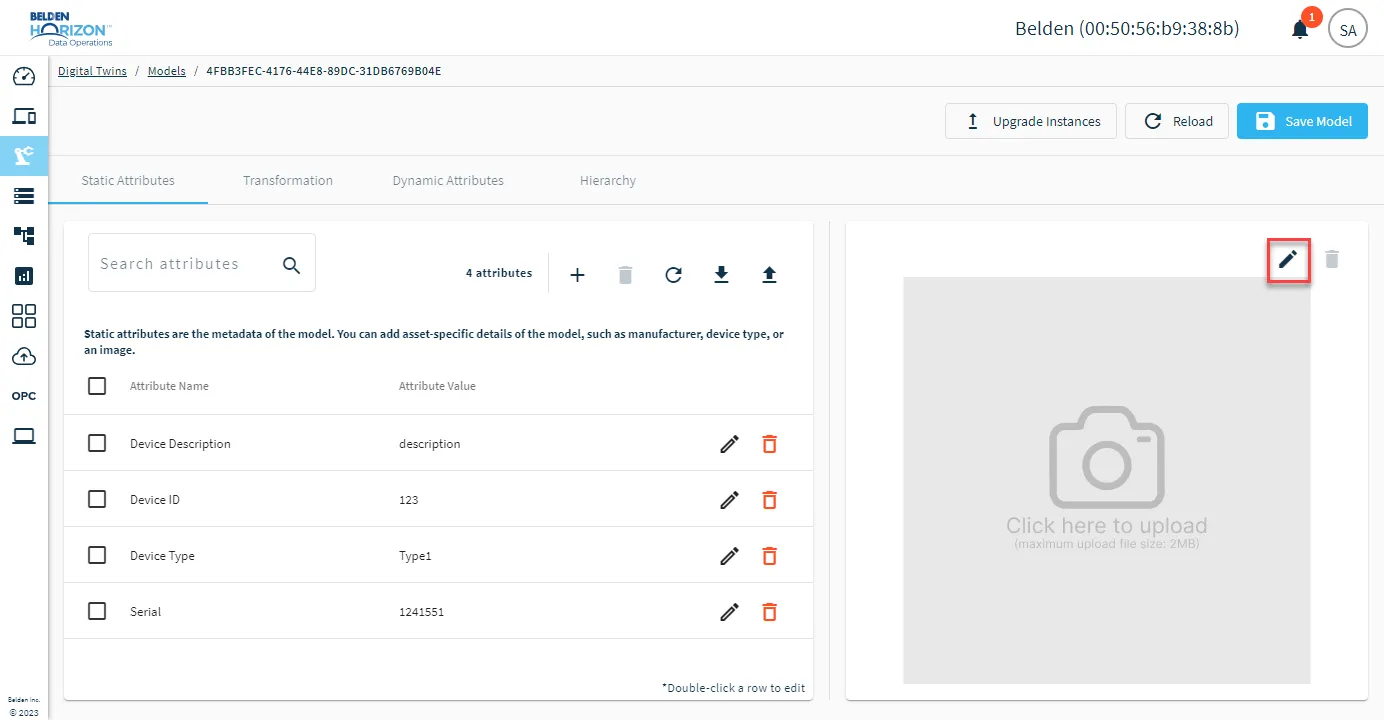
Click the Upload image icon to select an image for the model. The image will display for the model tile on the Models pane.
Static Attributes
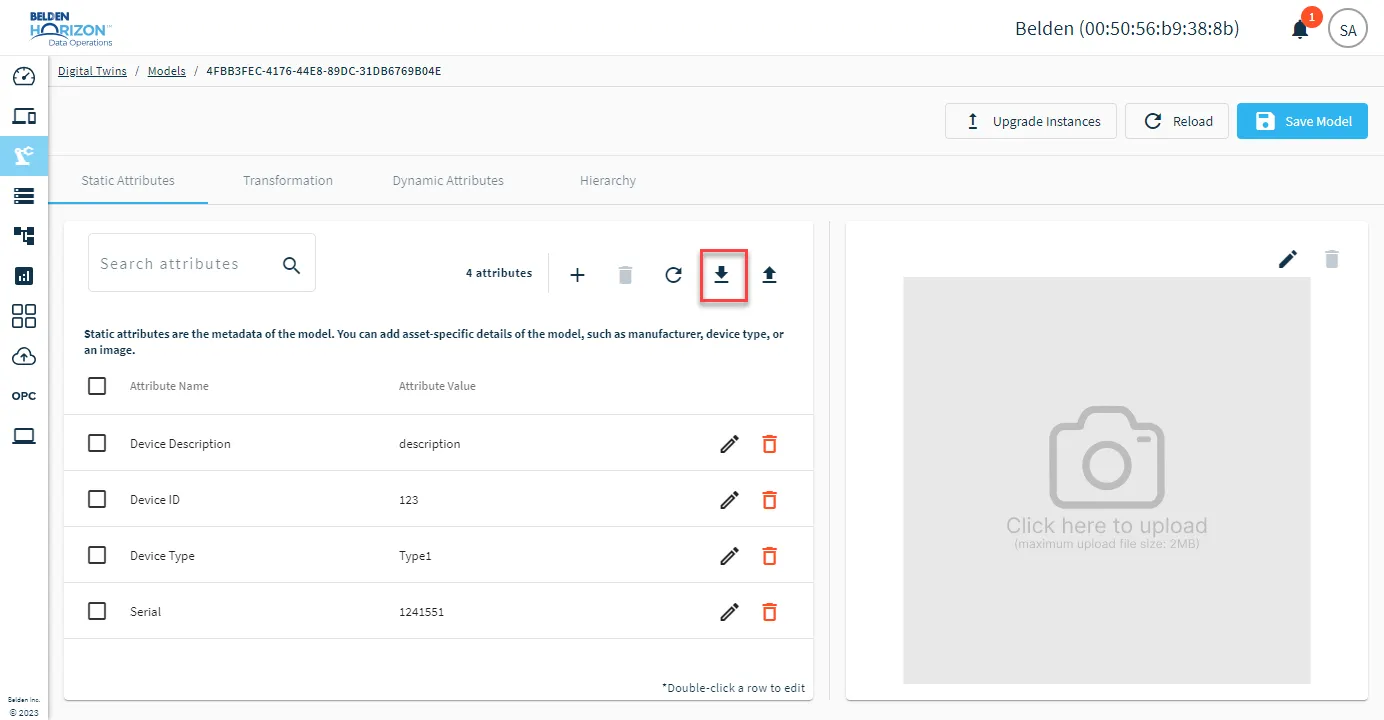
Manage the metadata for the model from the Static Attributes tab.
Note: The ability to export and import static attributes is available for Belden Horizon Data Operations version 3.10.0 and later.
Manually Add Static Attributes
To add static attributes:
- Click the Model tile (grid view) or Model name (table view) to open the model details.
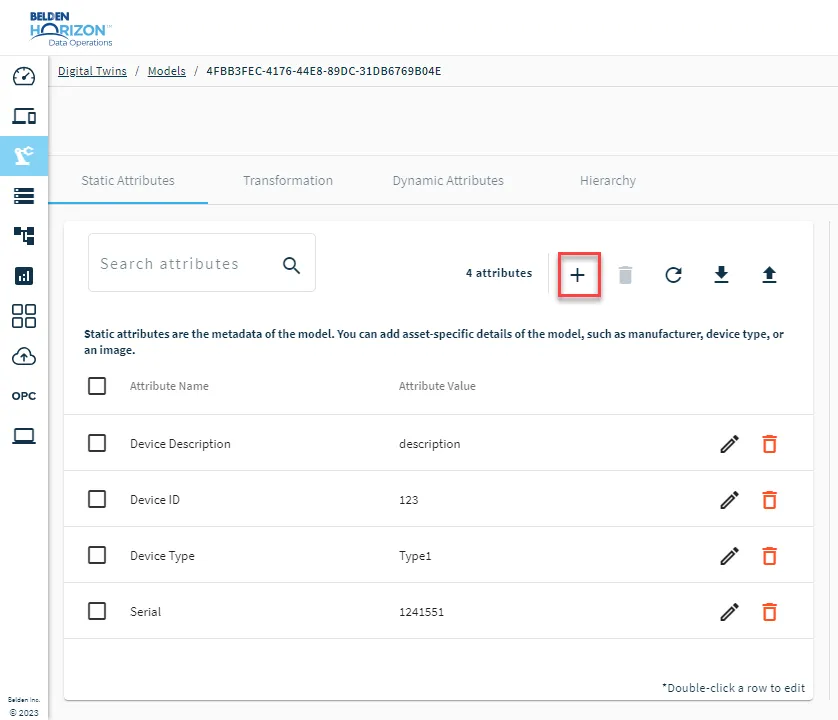
From the Static Attributes tab, click the Add item icon.
 Add static attribute icon
In the Attribute Name field, either select an item from the drop-down list or enter a custom attribute name.
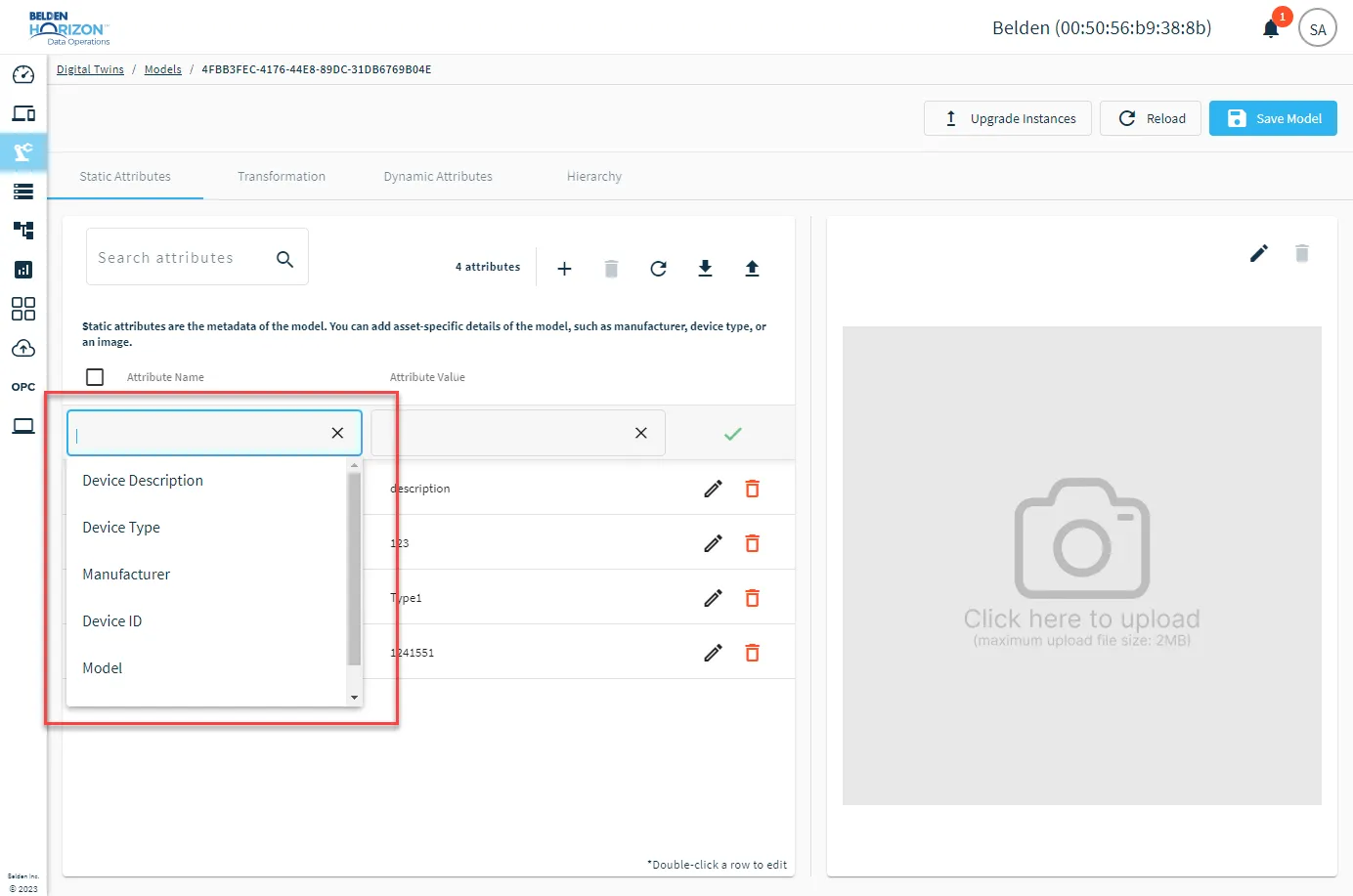 Static Attribute drop-down list
- In the Attribute Value field, enter a value for the model.
When done adding attributes, click Save Model. For Belden Horizon Data Operations versions 3.10.0 and earlier, save individual attributes by clicking the Save icon in each attribute row.
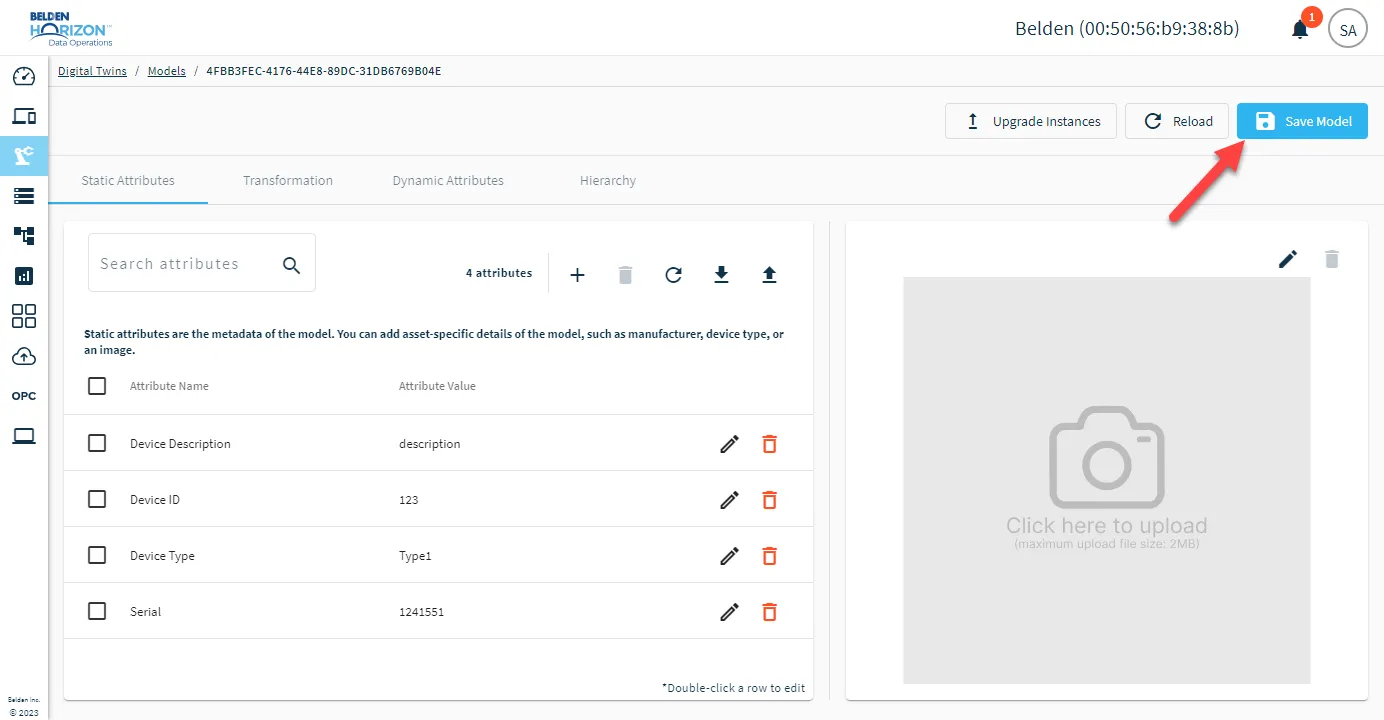
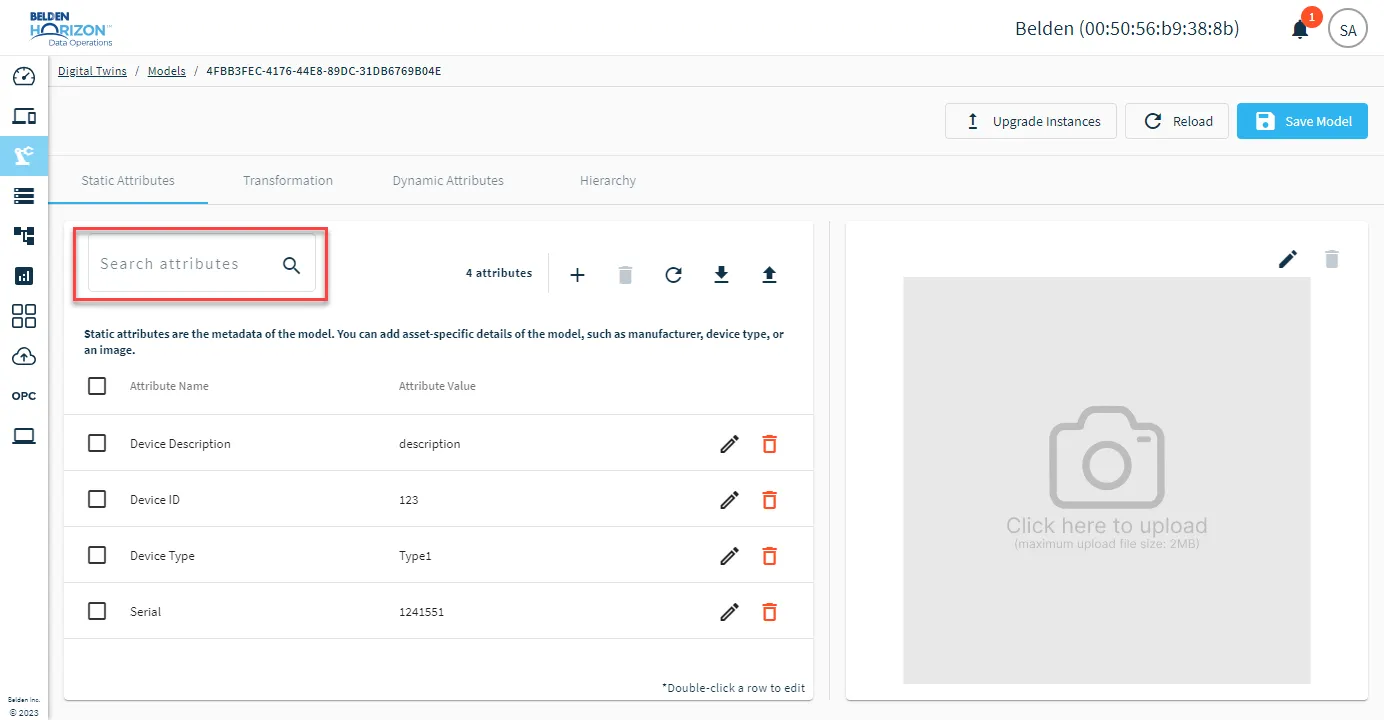
If you need to filter existing attributes, you can use the search field.
Import Static Attributes
To import static attributes (Belden Horizon Data Operations version 3.10.0 and later), create a CSV file with the following headers:
- ModelName
- InstanceName
- Key
- Value
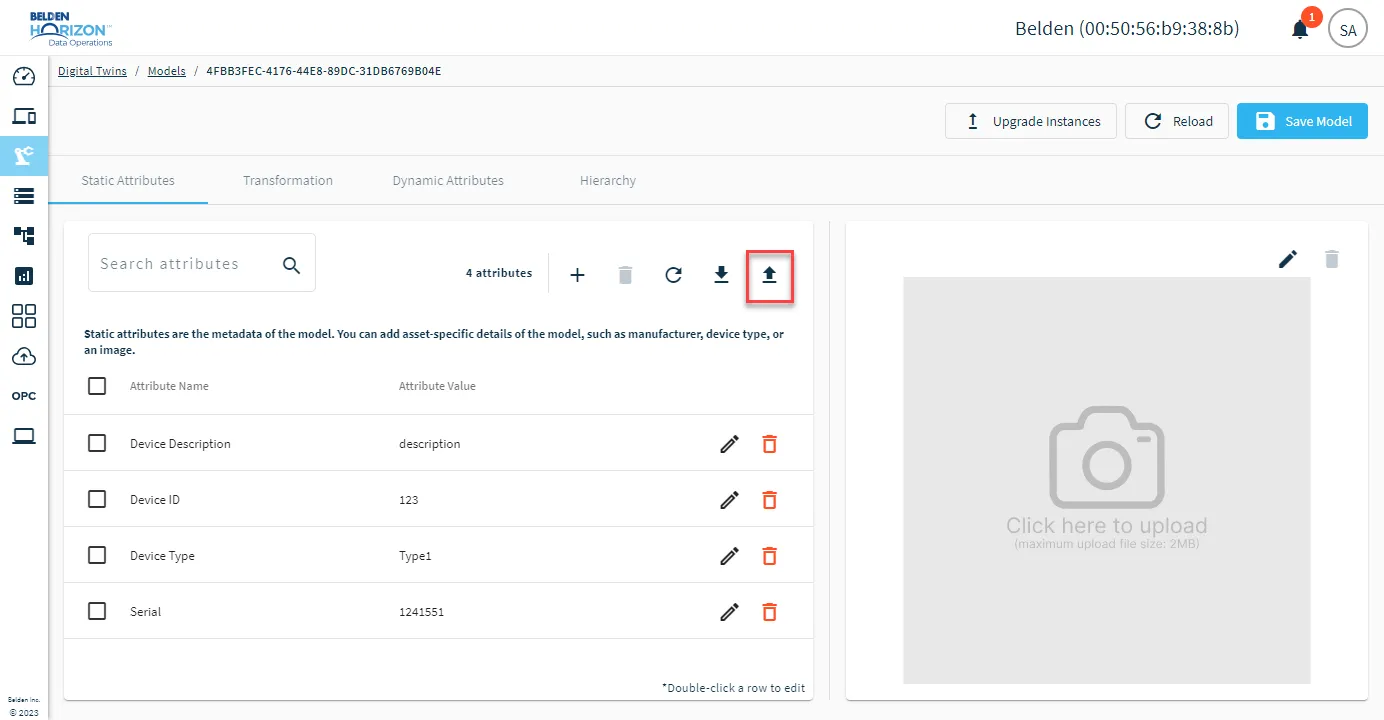
After creating the file, click the model tile, navigate to Static Attributes, and click the Import Attributes icon.
Export Static Attributes
To export a CSV file of existing static attributes (Belden Horizon Data Operations version 3.10.0 and later), click the Export Attributes icon.
Transformations
Use the Transformation tab to transform the data collected in Instances by converting raw JSON data to a desired format by defining the JSON-based schema.
You can define schema IDs, which can be used to manipulate the payload and define a structure for the payload as the model inherits data.
See Use Digital Twins to Contextualize Data to review how to format transformations.
Notes:
- If you update a transformation and remove all elements from the schema, the entire NATS message will be included in any dynamic attribute that have the transformation selected for the Schema ID.
- As of Belden Horizon Data Operations version 3.11.3, you can configure arrays in transformations. For example: { “key”: [ $timestamp, $value, $metadata.[0]] }
Arrays
As of Belden Horizon Data Operations version 3.11.3, you can configure arrays in transformations. For example:
{
  "key": [
    "$timestamp",
    "$value",
    "$metadata",
    {
      "key2": "$timestamp",
      "key3": "$value",
      "key4": "$metadata"
    }
  ],
  "key5 new": "$timestamp"
}
Configure Transformations
To add a transformation schema:
- Click the Model tile (grid view) or Model name (table view) to open the model details.
- Click the Transformation tab.
Click the Add a Schema icon. The Add dialog box appears.
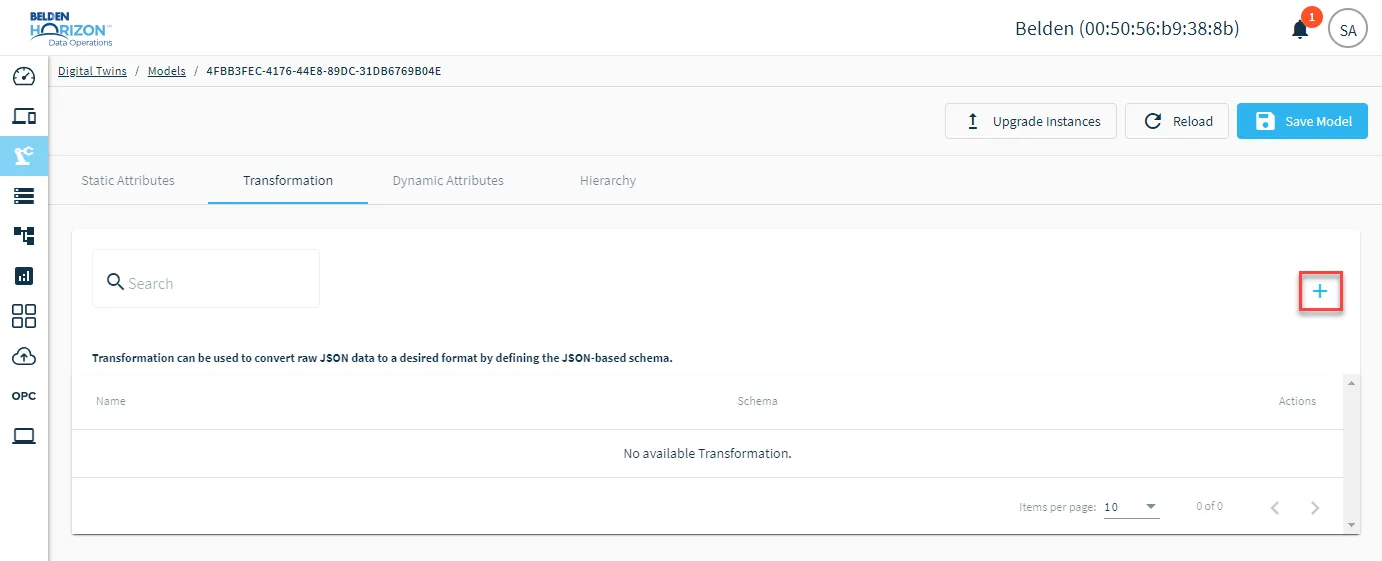 Add a schema icon
- Enter a name for the schema.
- In the code window, copy and paste the JSON-based schema.
- Click Add.
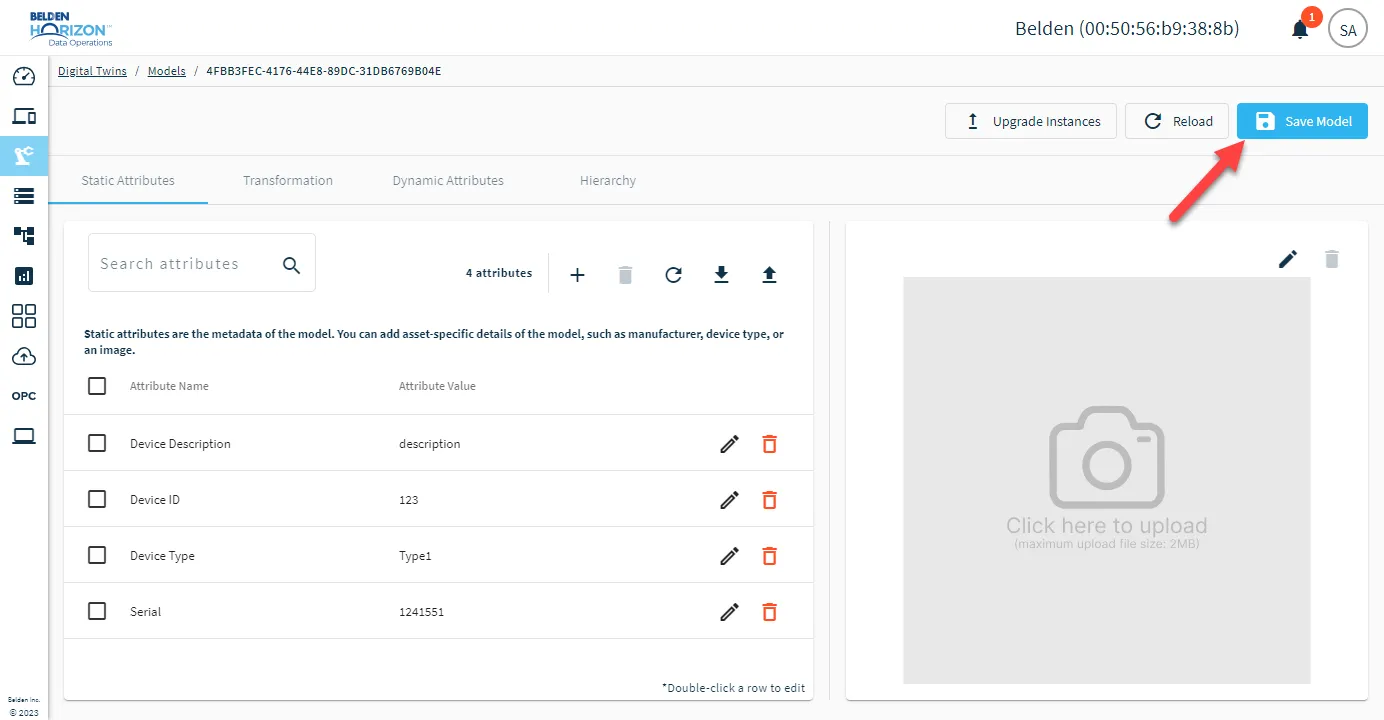
- When done adding attributes, click Save Model. For Belden Horizon Data Operations versions 3.10.0 and earlier, save individual attributes by clicking the Save icon in each attribute row.
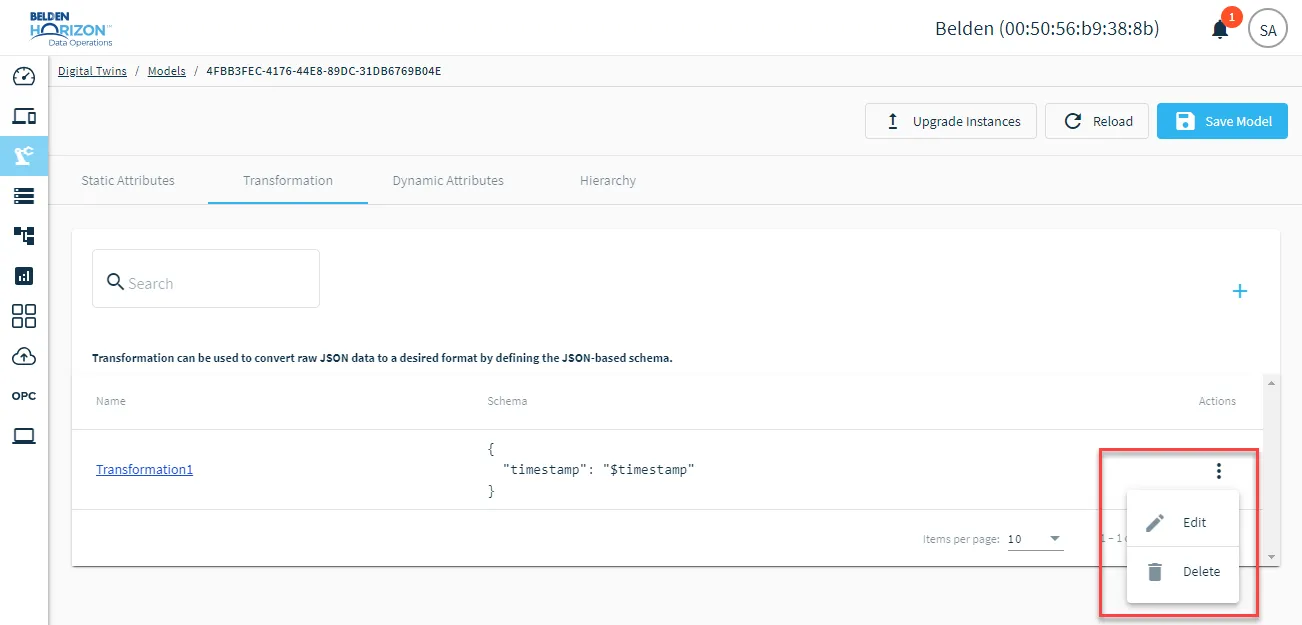
To edit or delete a schema, click the Action menu for the schema and select an option.
Dynamic Attributes
Manage variable data in the model from the Dynamic Attributes tab. You have the option of adding a schema ID, which can be used to map dynamic attributes one-to-one for data transformation.
Note:
- For Belden Horizon Data Operations versions 3.3.1 to 3.10.0, there is a limit of 100 dynamic attributes. For versions 3.11.0 and later, the limit is 2000.
- The ability to export and import dynamic attributes is available for Belden Horizon Data Operations version 3.11.0 and later.
To add a dynamic attribute:
Click the Add item icon.
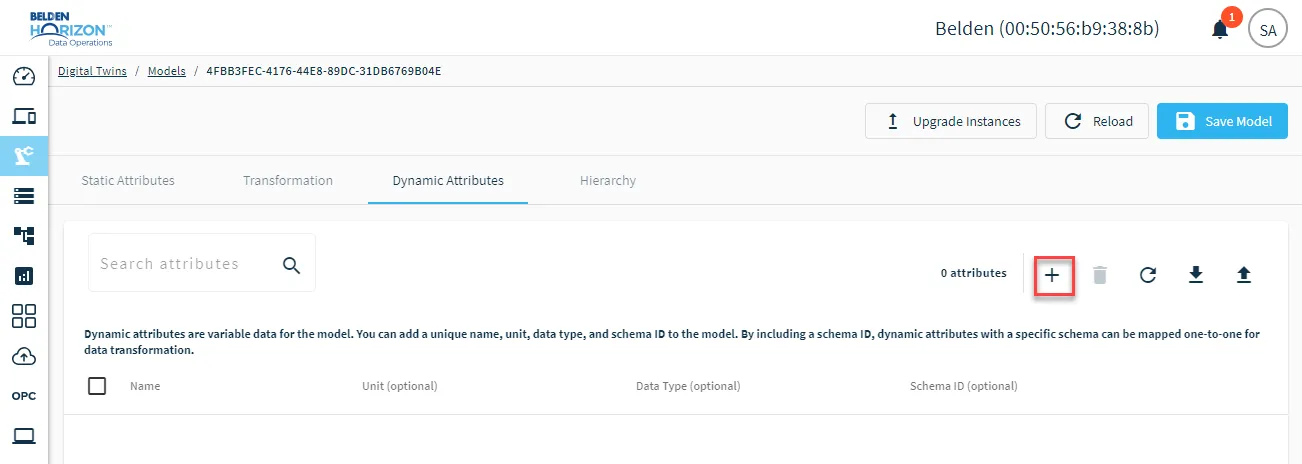 Add Dynamic attribute icon
- In the Name field, enter a name for the attribute.
- (Optional) Enter values for Unit and DataType.
- (Optional) If you've created data transformation schemas, select one from the SchemaID field.
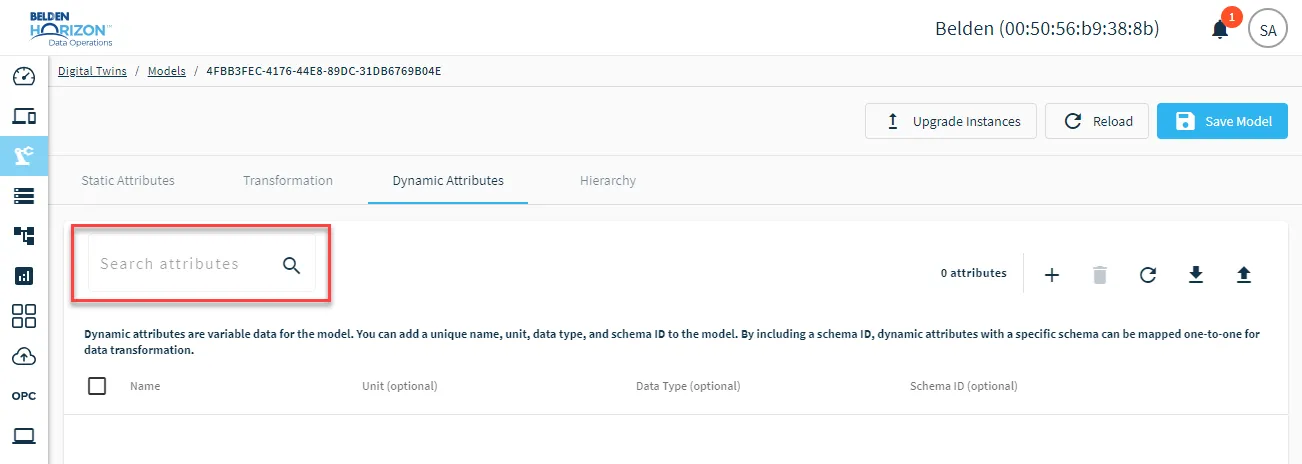
If you need to filter existing attributes, you can use the search field.
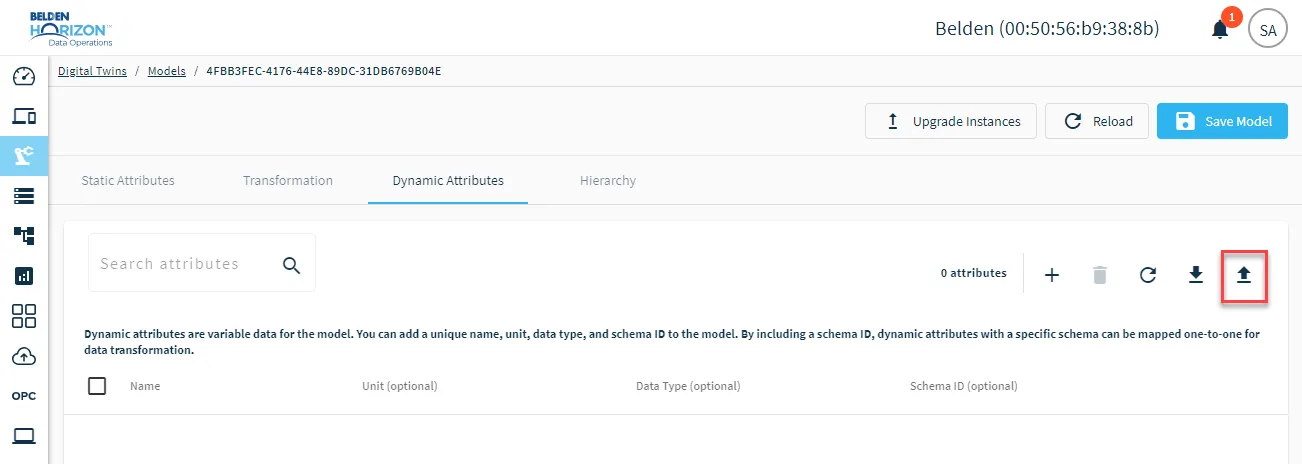
Import Dynamic Attributes
To import dynamic attributes (Belden Horizon Data Operations version 3.10.0 and later), create a CSV file with the following headers:
- ModelName
- InstanceName (optional)
- Topic (optional)
- Name (optional)
- Unit (optional)
- DataType (optional)
- SchemaID (optional)
After creating the file, click the model tile, navigate to Dynamic Attributes, and click the Import Attributes icon.
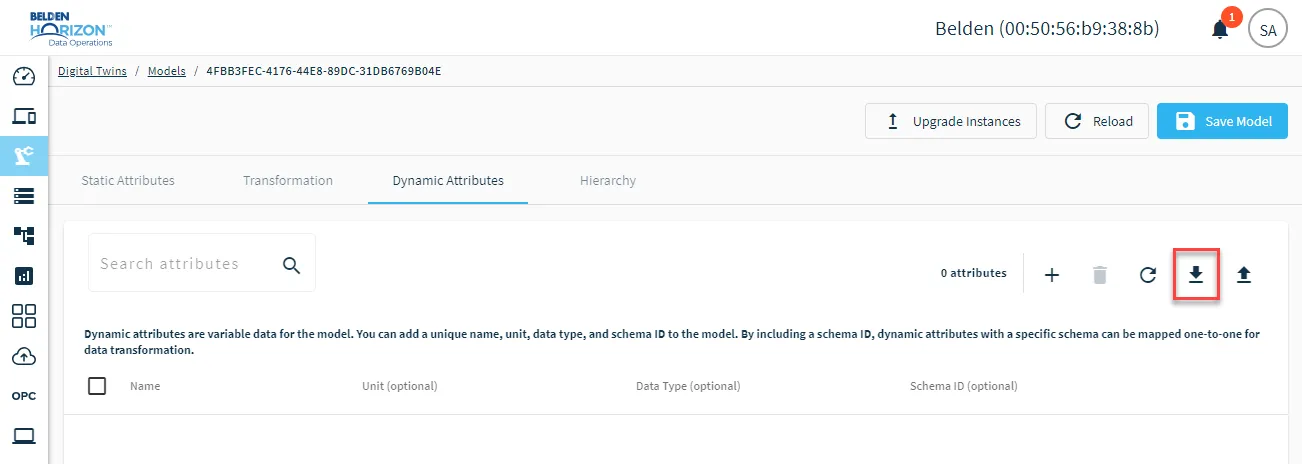
Export Dynamic Attributes
To export a CSV file of existing dynamic attributes (Belden Horizon Data Operations version 3.10.0 and later), click the Export Attributes icon.
Hierarchy
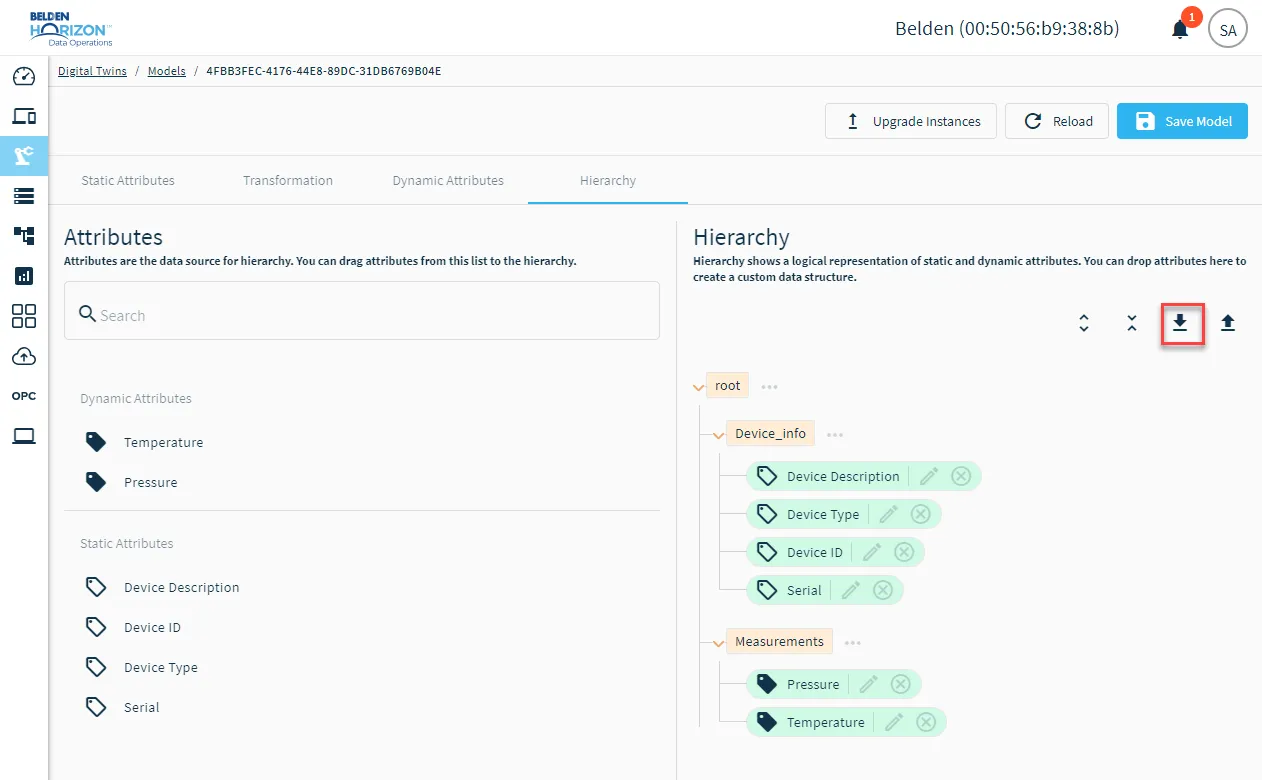
Use the Hierarchy tab to create a custom data structure for the model.
Notes:
- The Save button is available for Belden Horizon Data Operations version 3.5.2 and later.
- The ability to rename nodes/items and import/export hierarchies is available for Belden Horizon Data Operations version 3.9.0 and later.
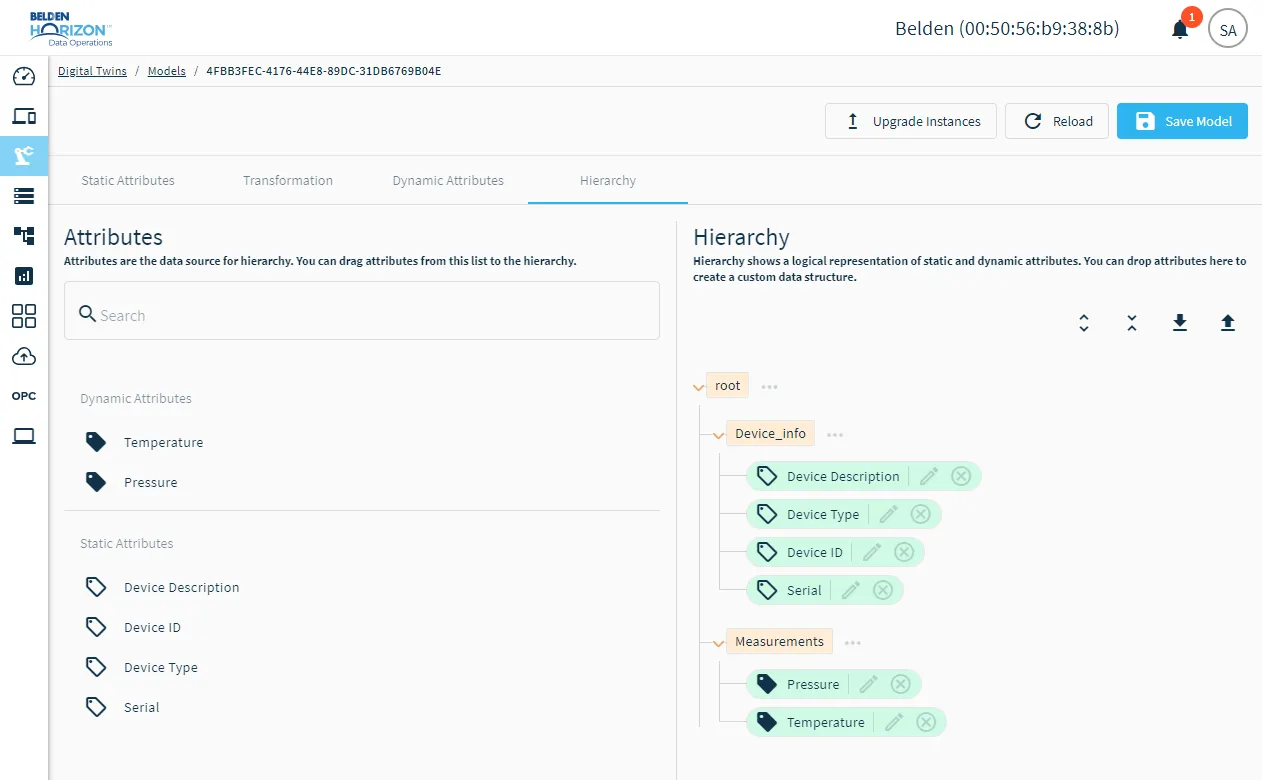
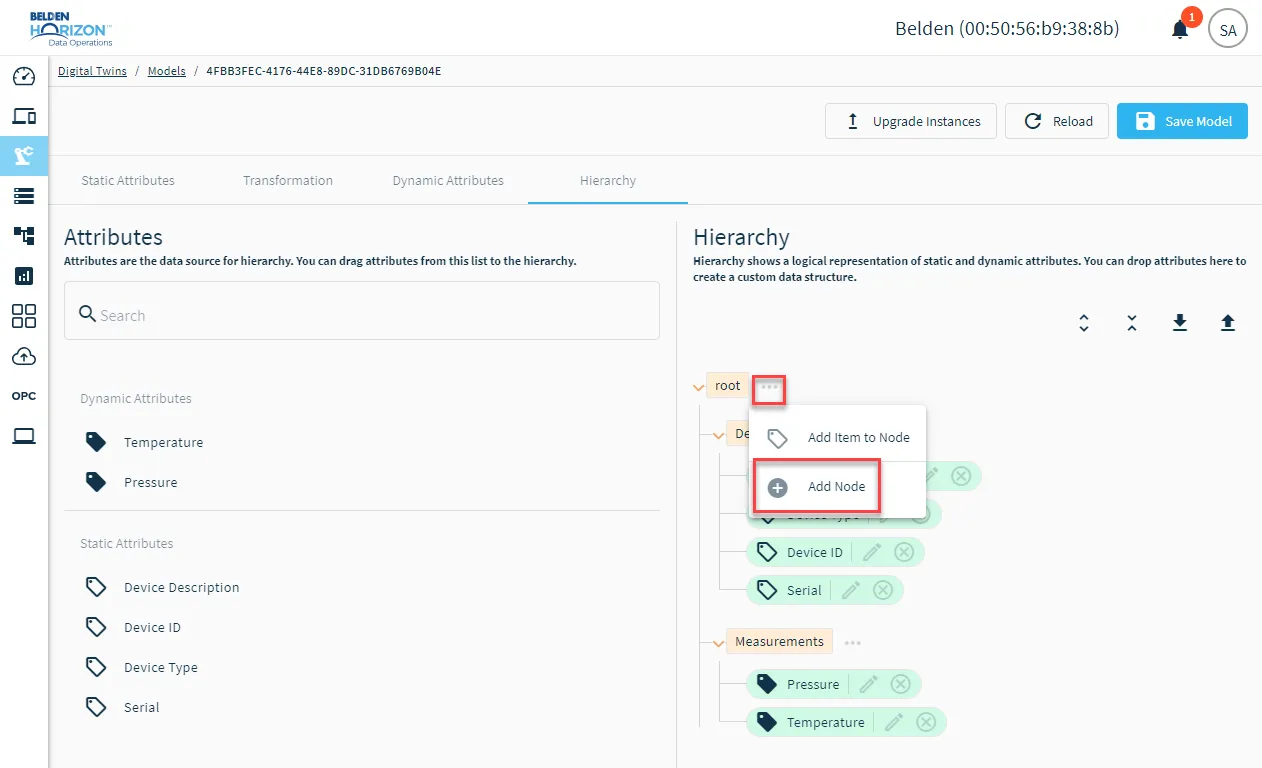
To create a category for the hierarchy, click the Action menu icon for root and select Add Node.
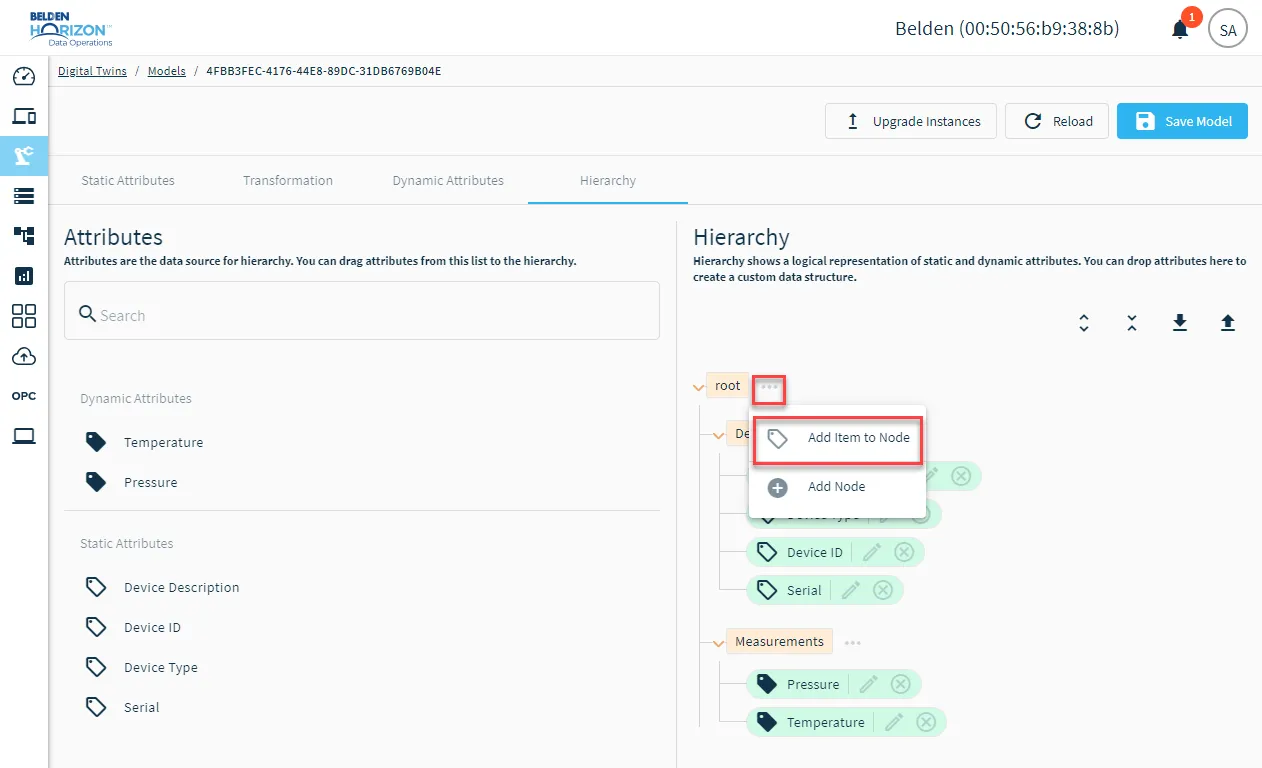
To add attributes to the hierarchy, do one of the following:
- Drag and drop attributes from the left-hand list to the canvas under the appropriate category.
- Click the Action menu for a category and select Add item to Node. Then, select the attribute to add.
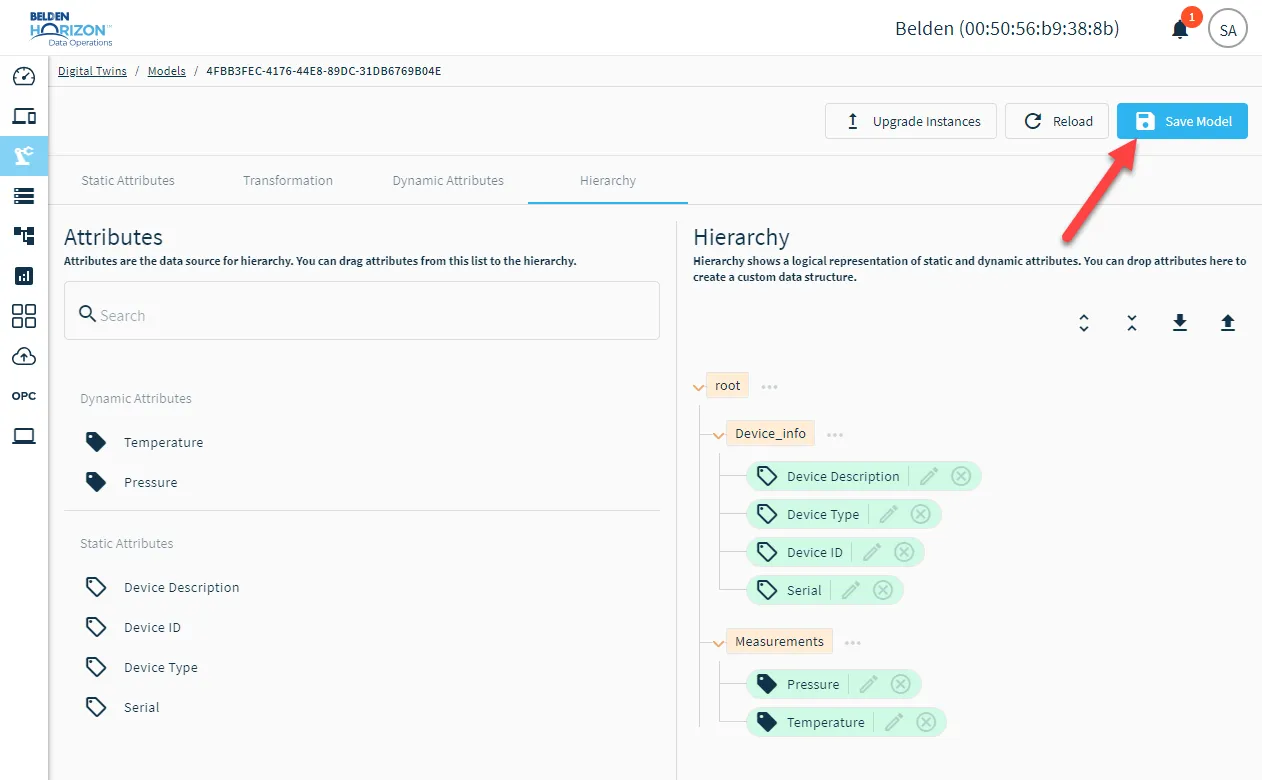
When done configuring the hierarchy, click Save Model. For Belden Horizon Data Operations versions 3.10.0 and earlier, click the Save icon.
Rename Nodes
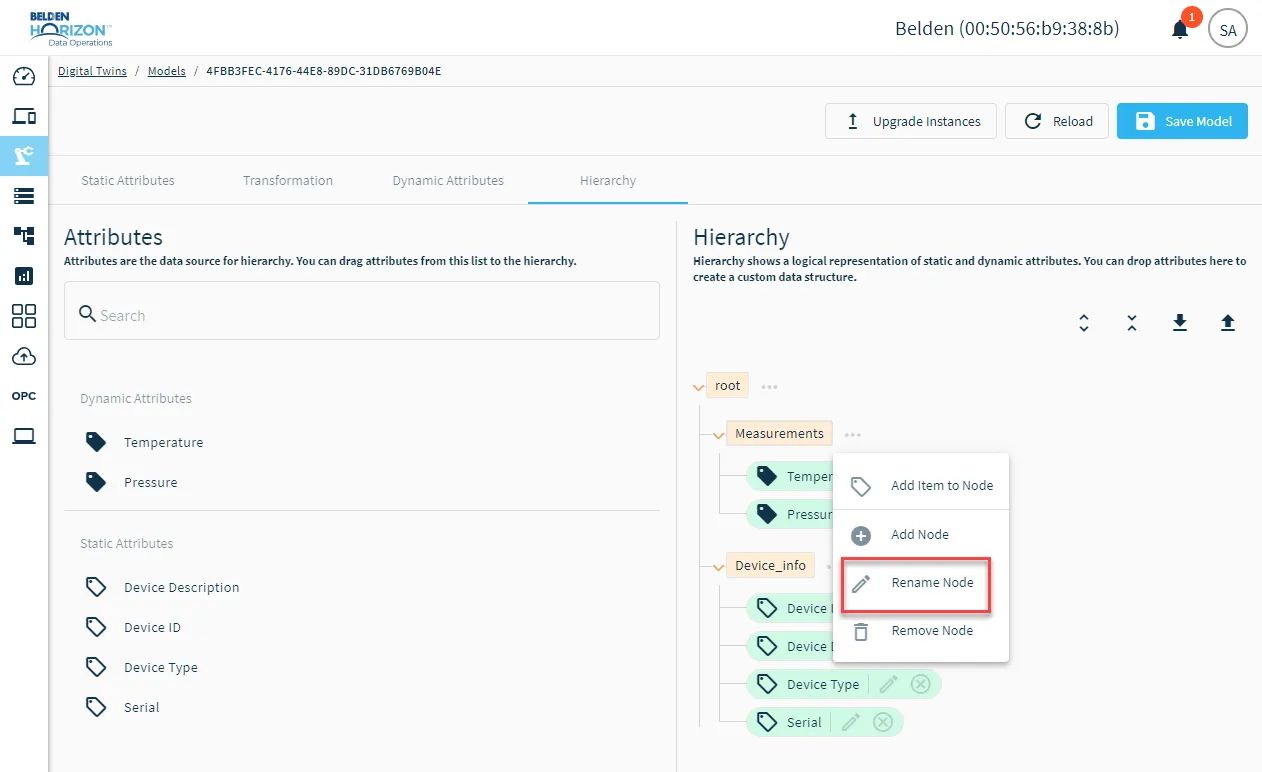
To rename nodes and attributes added to nodes (for Belden Horizon Data Operations version 3.10.0 and later), click the Rename Node and Rename Item icons.
Import Hierarchies
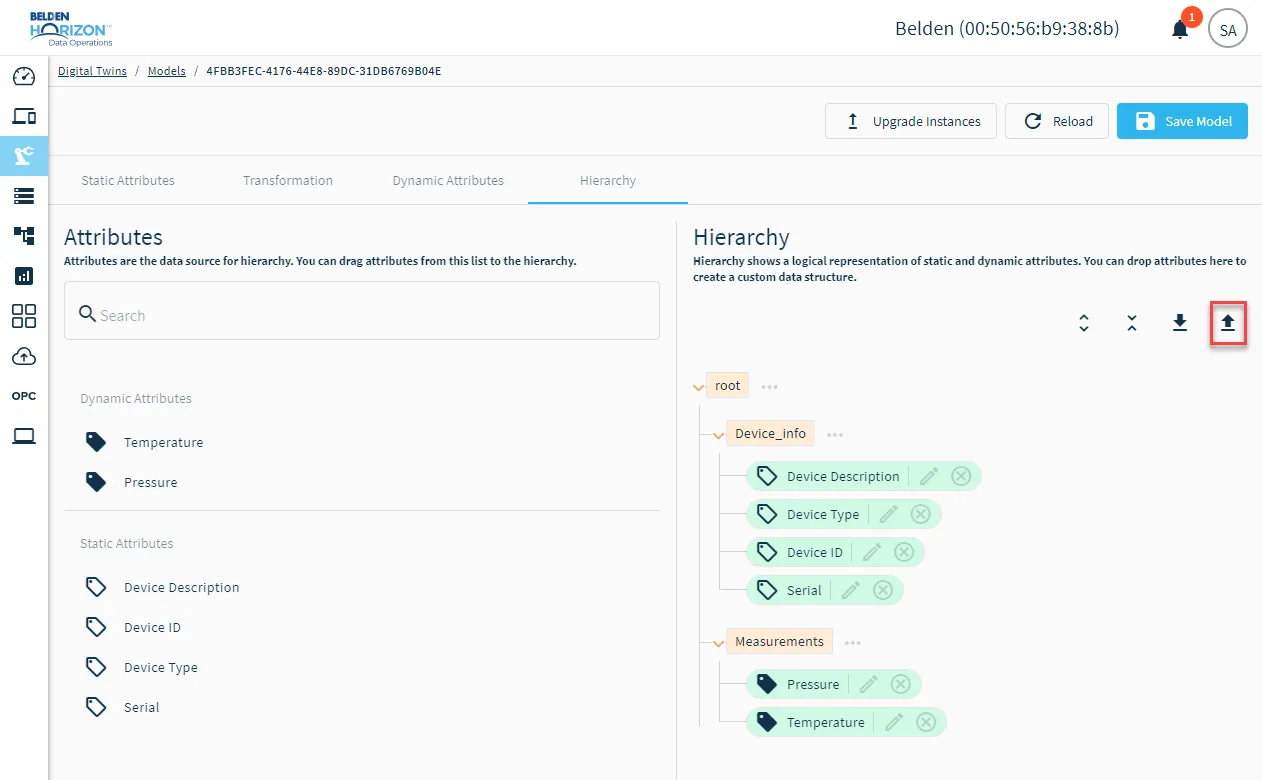
To import a CSV file of a hierarchy (Belden Horizon Data Operations version 3.10.0 and later), create a CSV file with the following headers:
- ID
- ModelID
- Position: Enter the position of the attribute in the hierarchy.
- ParentID: If the attribute is under a node/category, enter the ParentID of the node. To get the ParentID, create a new node, export the hierarchy, and then refer to the ParentID column.
- Name: The name of the attribute.
- IsFolder: If it is an attribute, the value is FALSE. If it is a node, the value is TRUE.
- AttributeID
- AttributeType
Export Hierarchies
To export a CSV file of an existing hierarchy (Belden Horizon Data Operations version 3.10.0 and later), click the Export hierarchy icon.