Azure Event Hub Integration Guide
Review the following guide for setting up an integration between Belden Horizon Data Operations and Azure Event Hub.
The Azure Even Hub connector is based on the Azure official SDK.
Before You Begin
Make sure you have an Azure account.
Step 1: Add a Device
Follow the steps to Connect a Device. The device will be used to store tags that will be eventually used to create outbound topics in the connector. Make sure to select the Enable Data Store check box.
Step 2: Add Tags
After connecting the device in Belden Horizon Data Operations, you can Add Tags to the device. Create tags that you want to use to create outbound topics for the connector.
Step 3: Add the Azure Event Hubs Connector
Follow the steps to Add a Connector and select the Azure Event Hubs provider.
Configure the following parameters.
- Name: Enter a name for the connector.
- Connection String: Copy the string from your Azure SAS Policy and paste it here.
- Maximum Message Size: The maximum message size in KB. The default value is 256.
- Parallel Connections Count: The maximum number of parallel connections from your edge device to Azure Event Hub. The default value is 50.
- Combine Messages: Select the check box to combine messages (thus reducing the number of parallel connections).
- Throttling limit: The maximum number of messages per second to be processed. The default value is zero, which means that there is no limit.
- Persistent storage: When enabled, this will cause messages to undergo a store-and-forward procedure. Messages will be stored within Belden Horizon Data Operations when cloud providers are online.
Step 4: Enable the Connector
After adding the connector, click the toggle in the connector tile to enable it.
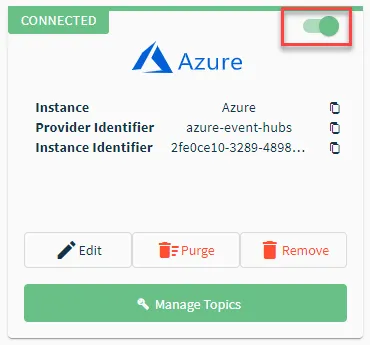
If you see a Failed status, review the Connector Logs and any relevant error messages.
Step 5: Create Outbound Topics for Connector
You will now need to create outbound topics for the connector from the tags created in Step 2.
To create outbound topics:
- Click the connector tile. The connector Dashboard appears.
- Click the Topics tab.
Click the Import from DeviceHub tags icon. The DeviceHub Import dialog box appears.
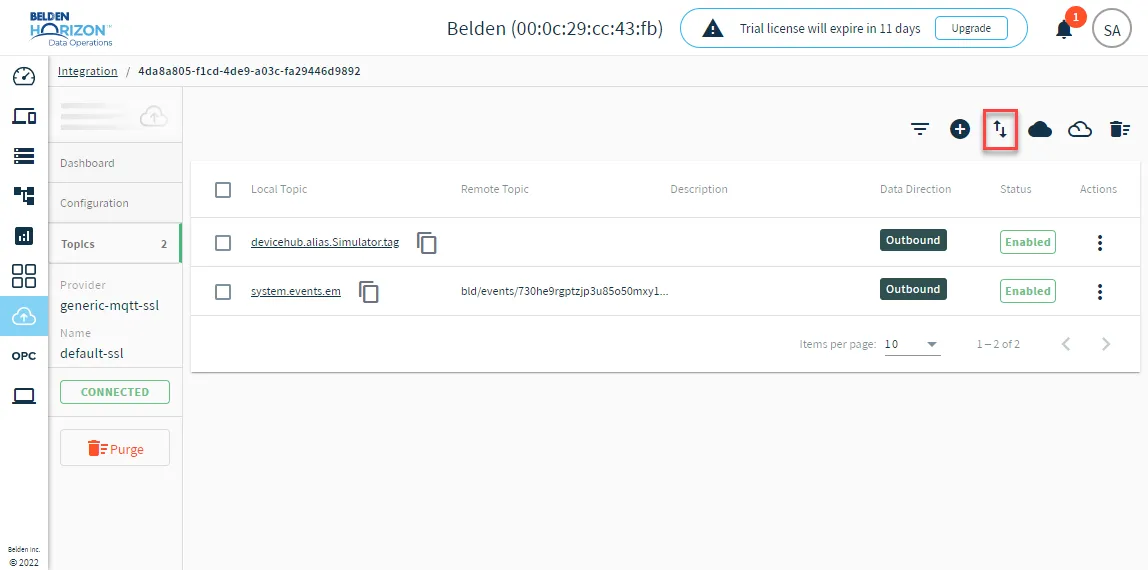
After importing the tag(s), do the following:
- Edit the tag and configure the Remote Data Topic. Copy and paste the name of your Azure Event Hub.
- Click the Enable toggle to enable the topic.
- Make sure the connector has a CONNECTED status.
Step 6: Verify Connection in Azure
To verify the connection in Azure:
- Open the Azure portal.
Open the Event Hub you have connected to and see statistics on the messages it receives from the Belden Horizon Data Operations outbound topic.
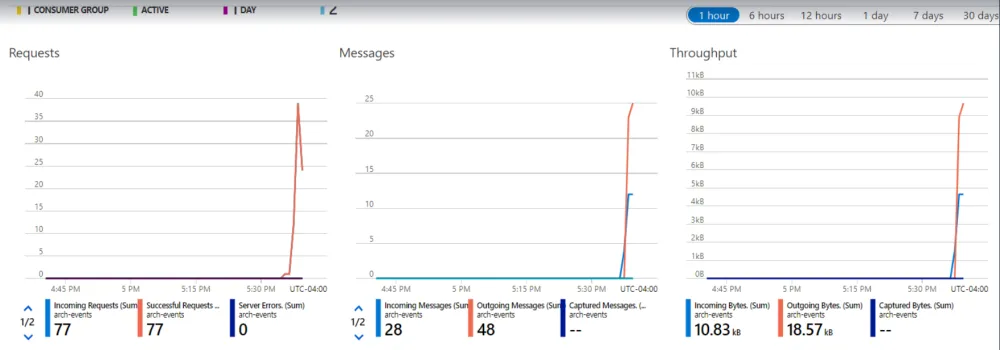 Azure Event Hub
Navigate to Process Data > Explore to see the messages in a tabular form.
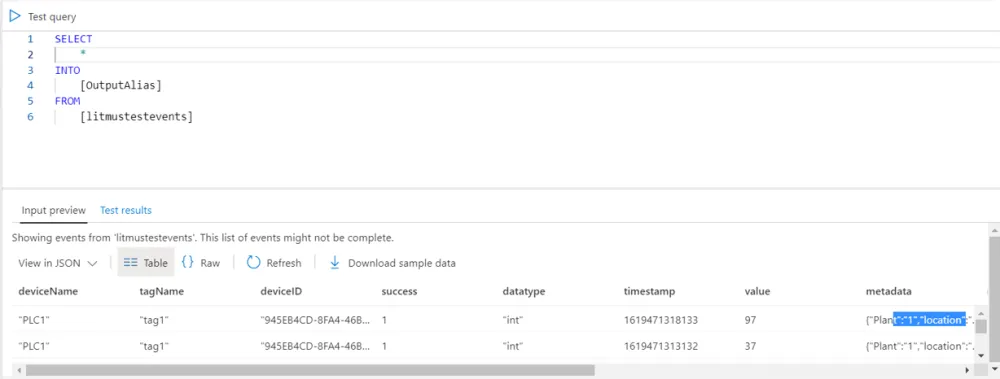 Explorer view in Azure